

Updated:
Readtime: 10 min
Every product is carefully selected by our editors and experts. If you buy from a link, we may earn a commission. Learn more. For more information on how we test products, click here.
- Proximity Handoff instantly transfers iPhone calls, music, and recipes to HomeView.
- A18 Secure Exclaves protect facial recognition and local Wi-Fi personal content.
- Distance-adaptive UI scales text and dims down to 0.3 nits overnight.
- Conversational Siri AI suggests recipe substitutes and saves texted addresses onscreen.
- Tabletop HomeView packs Spatial Audio acoustics and nine-camera live HomeKit monitoring.
Until the release of Apple’s new HomeView this week, Apple users could get that smart home hub feeling with a screenless HomePod speaker that relies entirely on voice commands, or prop an iPad on a third-party kitchen stand and call it a hub. But with the launch of the HomeView (AUD$449), Apple has finally built a purpose-designed display for the heart of the home.
I published my full, in-depth review of the new Apple HomeView yesterday, but it’s worth boiling down some of the best and most unexpected features, now that I’ve had a chance to really run it through its paces. Here’s what Apple HomeView can actually do, and a few reasons it may or may not change your daily routine and habits.
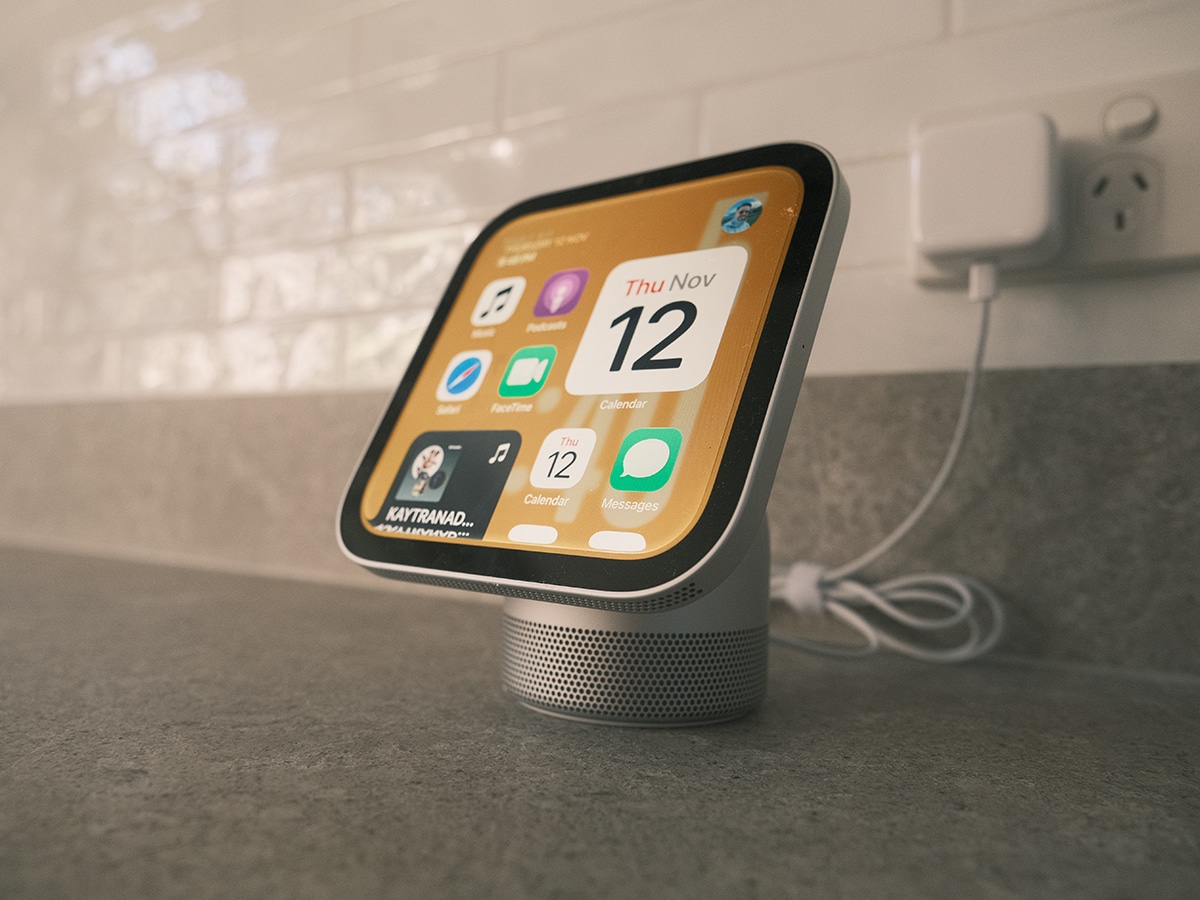
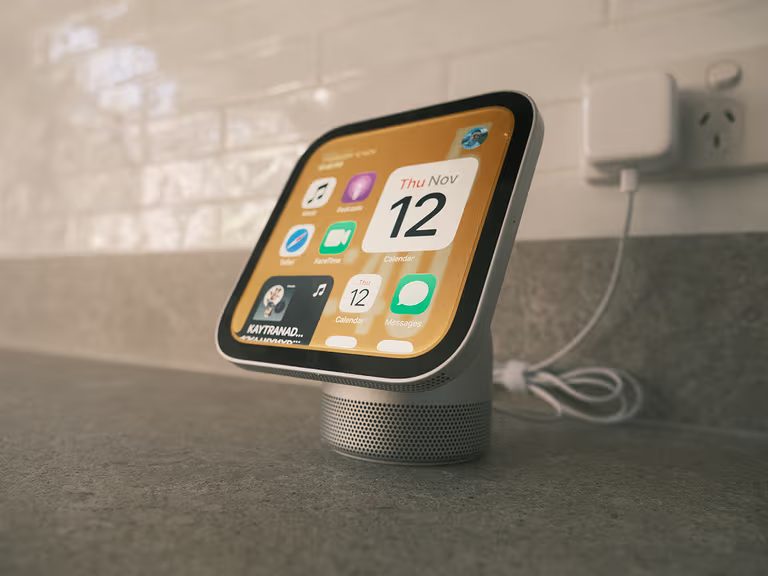
Lets start with the HomeView configurations. There’s an adjustable tabletop model and a flush wall-mounted variant that both cost the same price (note: the wall variant misses out on the base speakers). Both configurations pair a square 7-inch Liquid Retina touchscreen with the A18 chip, a 12MP Center Stage camera, and Siri AI.
It’s not a boiled-down iPad, and it’s not an iPhone Duo. There are clear, deliberate ecosystem constraints you need to accept. Neither model includes an internal battery, meaning permanent wired power via USB-C is mandatory, and unlocking personal Siri AI context requires having a paired Apple Intelligence-enabled iPhone or iPad on the same Wi-Fi network. Even so, if your household already runs on Apple hardware, the standout features that we’ll explain below make the HomeView a major upgrade over a standard smart speaker.
1. Seamless iPhone Handoff and Safari Cooking Mode
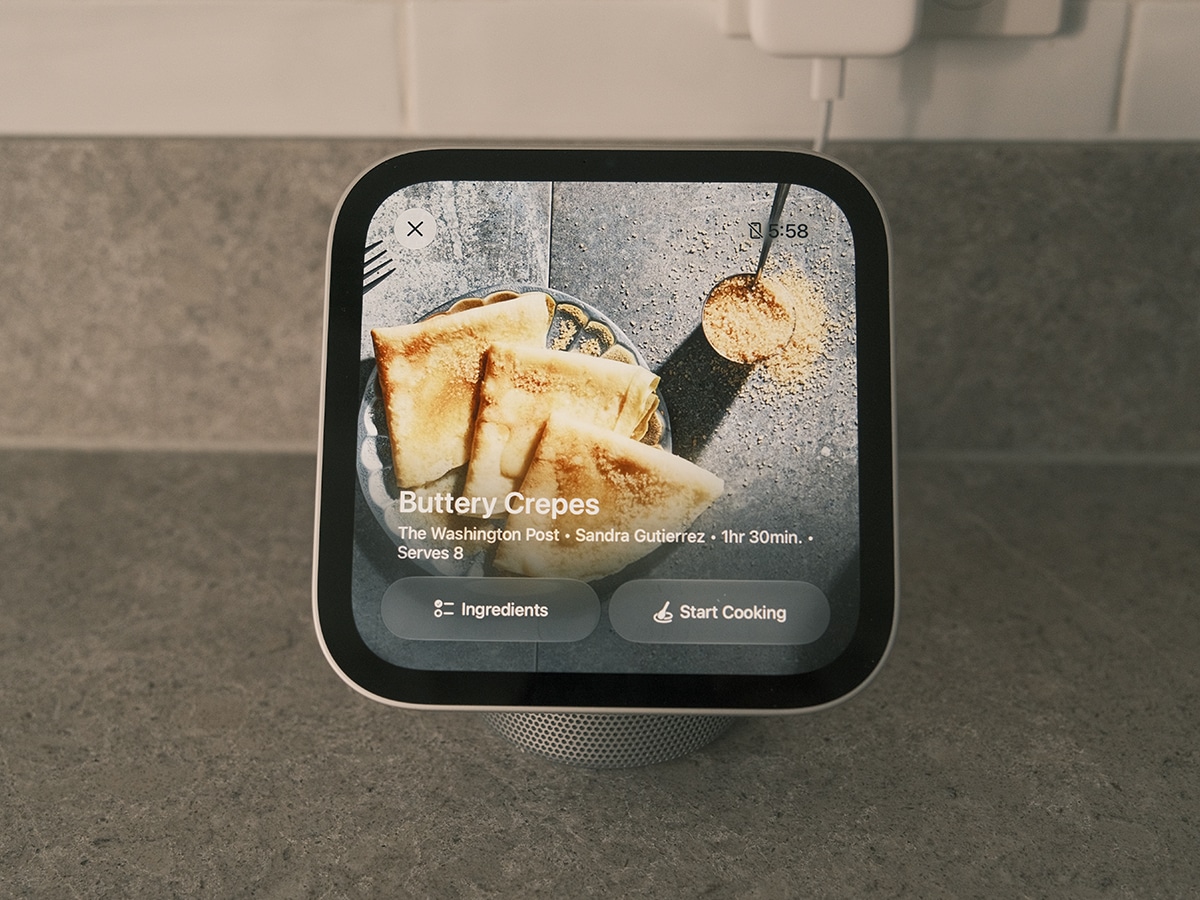
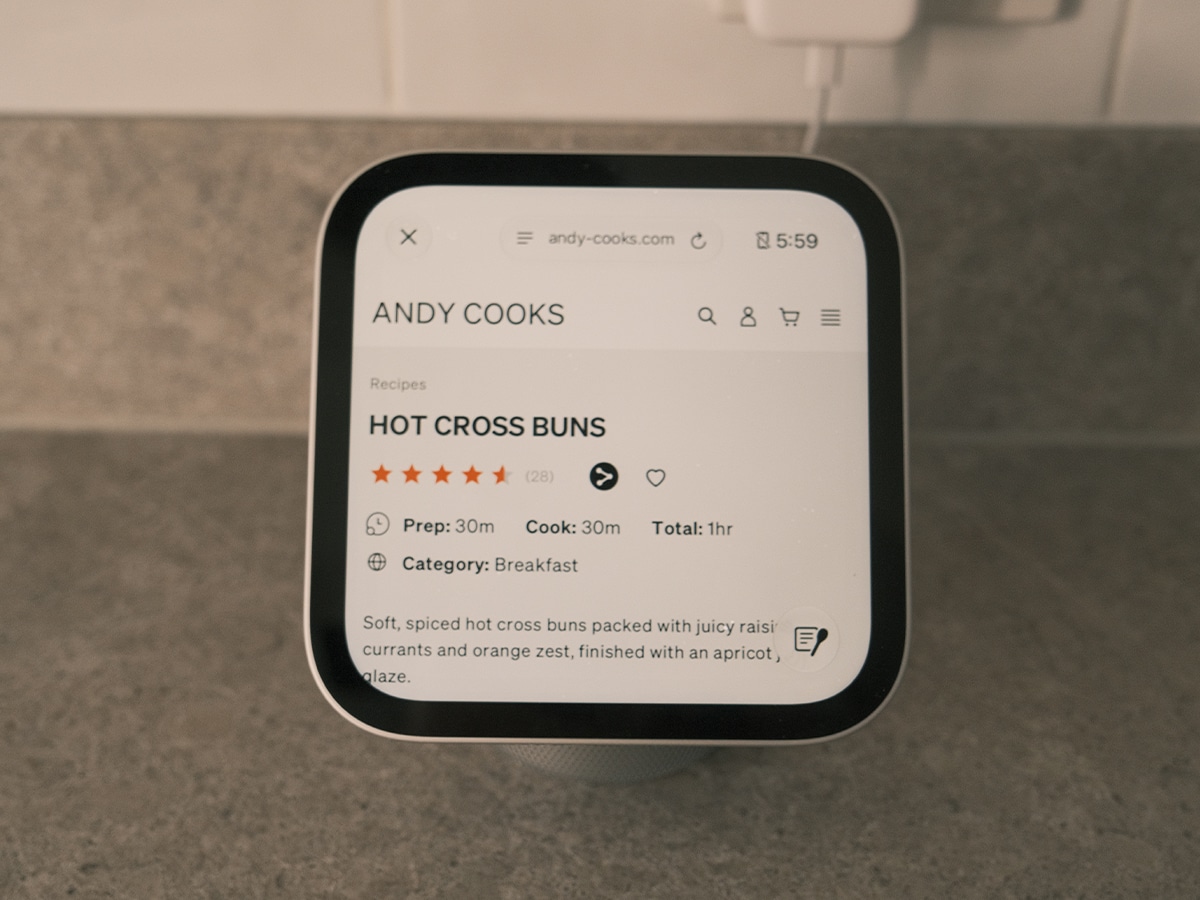
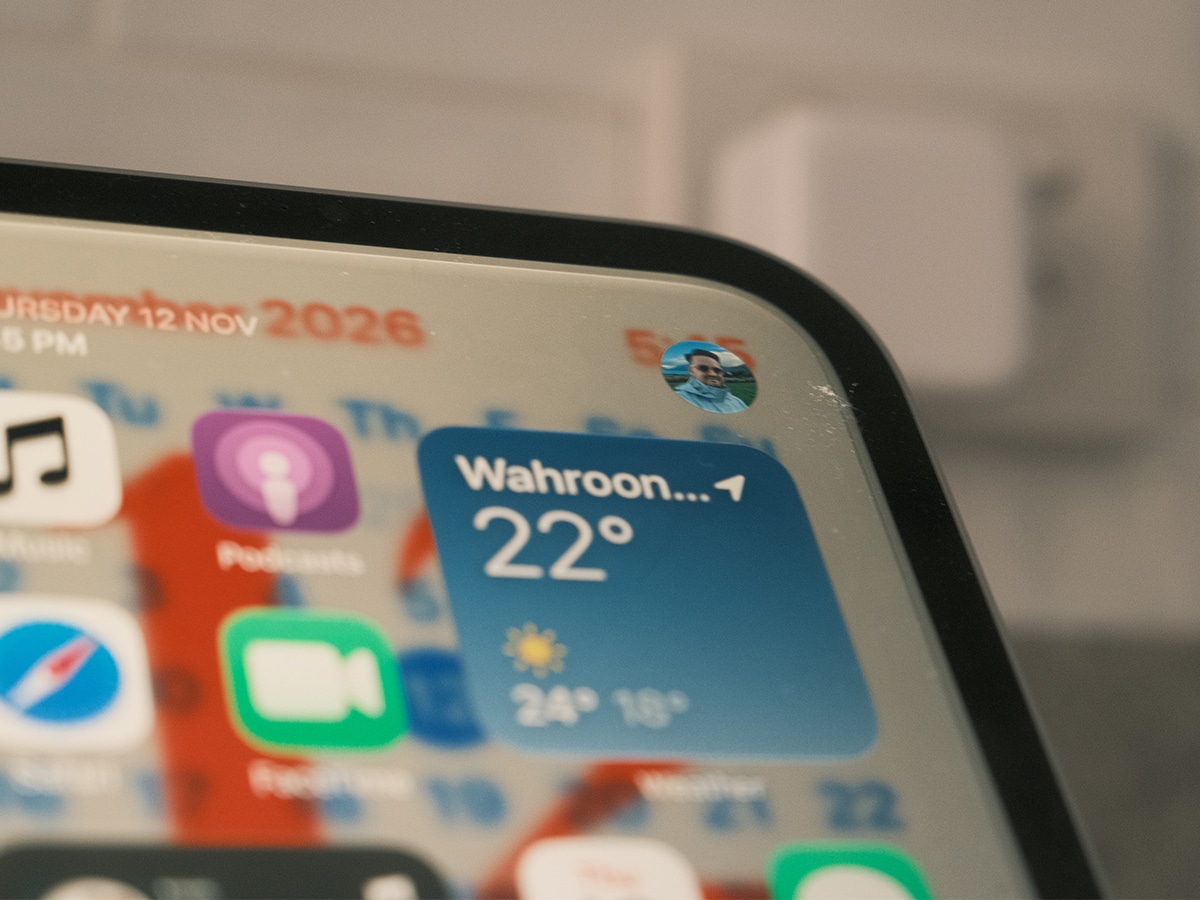
Until the HomeView, I was a Google Nest Hub user. So I know all too well that one of the biggest frustrations with existing smart displays is getting what’s on your phone onto the larger screen without fumbling through menus or AirPlay settings. HomeView solves this with proximity Handoff. When you walk into the kitchen mid-podcast, on a FaceTime call, or halfway through reading a recipe on your iPhone, simply holding your phone in front of the HomeView display transfers playback, the active call, or the Safari tab straight onto the 7-inch screen.
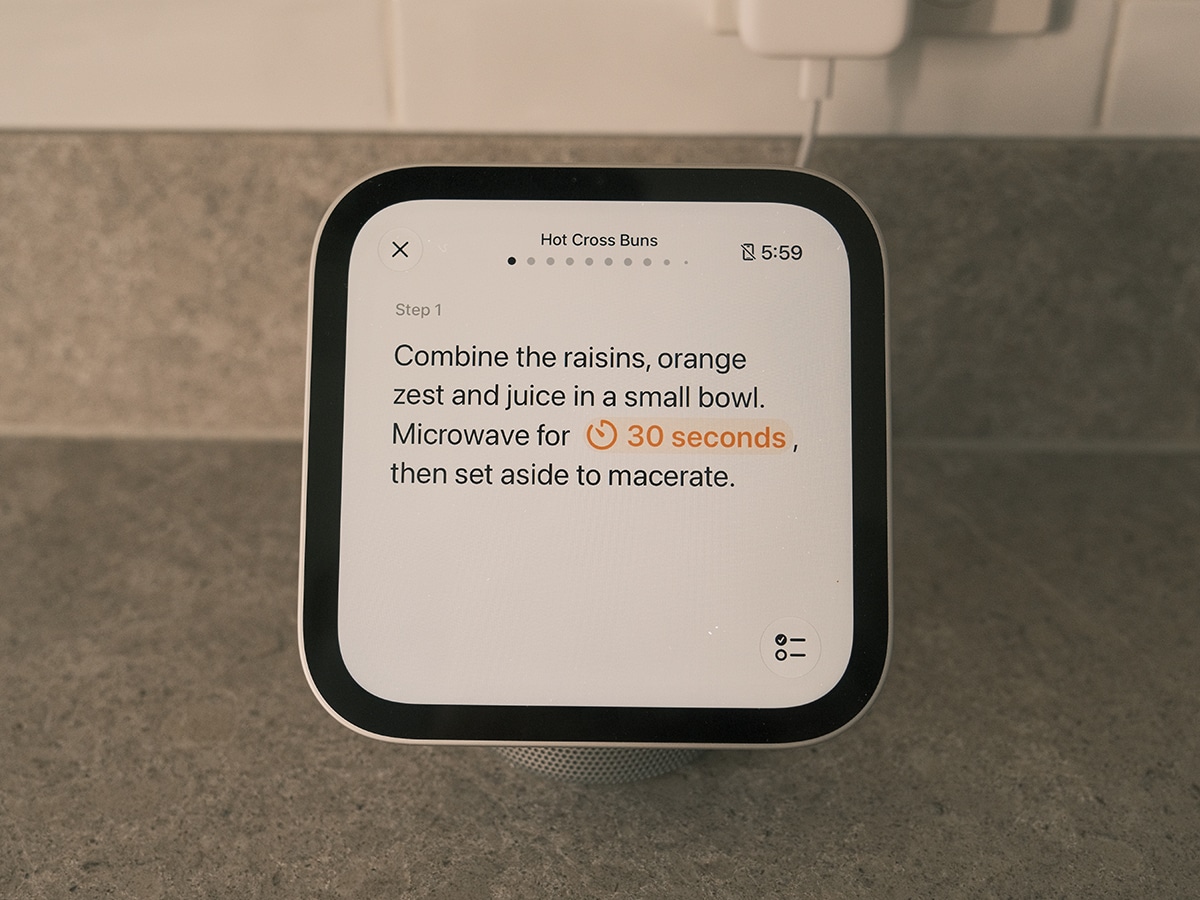
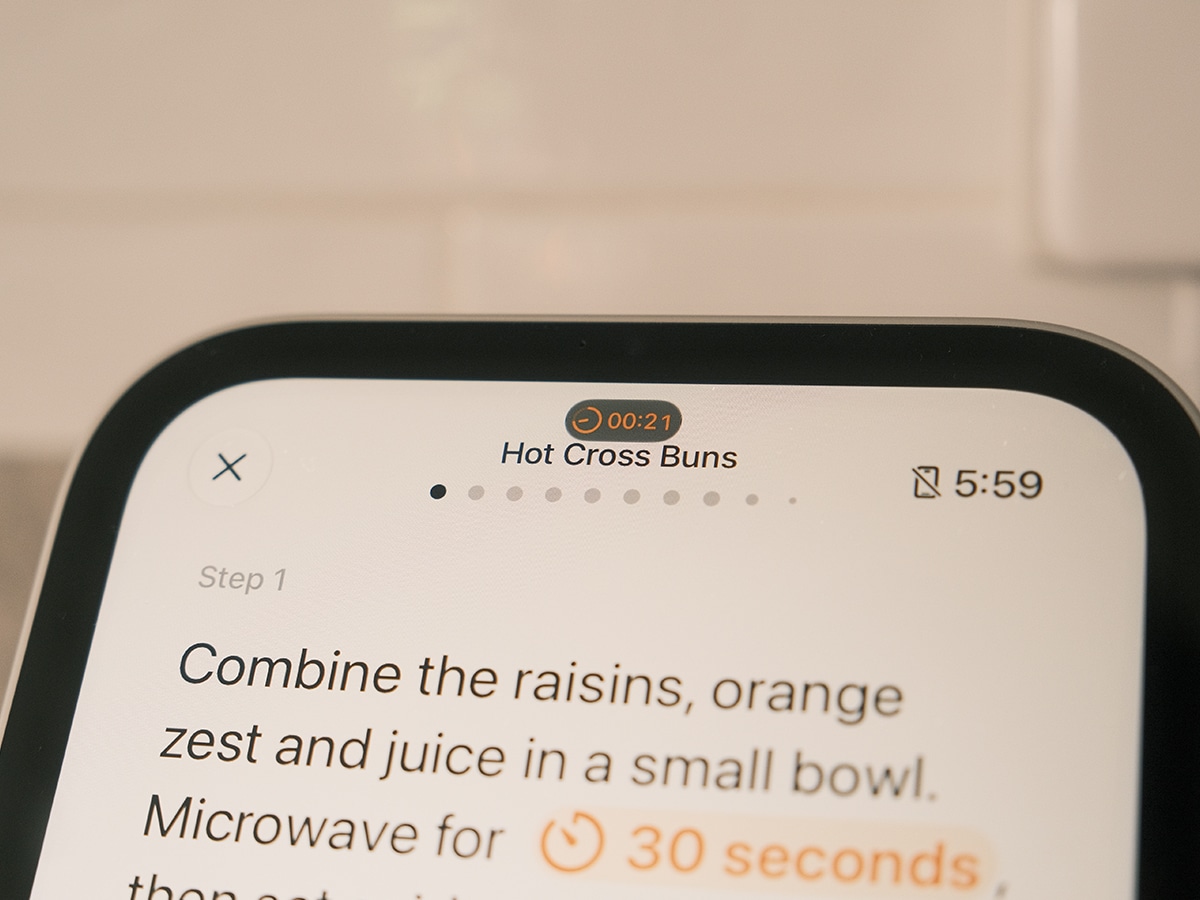
This works for apps like Apple Music, and even third-party ones like YouTube (in my tests), but one of the best implementations so far is with recipes. Open a recipe in Safari, and HomeView switches to a dedicated kitchen assistant. Tapping the cooking icon in the bottom-right corner strips away clutter into a clean, checkable ingredient list and step-by-step instructions. Better yet, any time duration mentioned in the recipe automatically converts into an inline, one-tap timer that tracks live at the top of the screen via Live Activities.
NOTE: Because HomeView doesn’t include an App Store and relies on Apple’s CarPlay framework for third-party media support, there’s no native Netflix app at launch. You can still log into streaming sites via Safari or hand off a browser tab.
2. Multi-User Recognition via A18 Secure Exclaves
Putting a camera and four beamforming microphones in a shared family kitchen usually creates an obvious privacy trade-off. You can either lock personal features so no one else can access them, or leave your messages and calendar exposed to guests. But the brand has addressed this at the silicon level using hardware Secure Exclaves built into the A18 chip, along with something called Personal Content.
The Secure Exclaves process raw camera and microphone feeds inside an isolated hardware compartment that neither the operating system nor Apple can access. Meanwhile, Personal Content means each person can see their own Messages, Calendar, Reminders, FaceTime, Find My, and more simply by walking up to the device with their iPhone in their pocket.
To prevent a houseguest from reading your texts when you leave the house, the data transfer requires strict proximity conditions. It requires the user to be recognised by their face or voice, and the paired iPhone or iPad must have been unlocked recently and be connected to the same Wi-Fi network. If you briefly drop off the wireless connection, the device must have an active cellular connection in the same location and have recently connected to the same network. Because of this local tethering, personal content isn’t stored on HomeView for others to access, and your private schedule disappears the moment you step away from the counter.
3. Distance-Adaptive UI and 0.3-Nit Nightstand Dimming
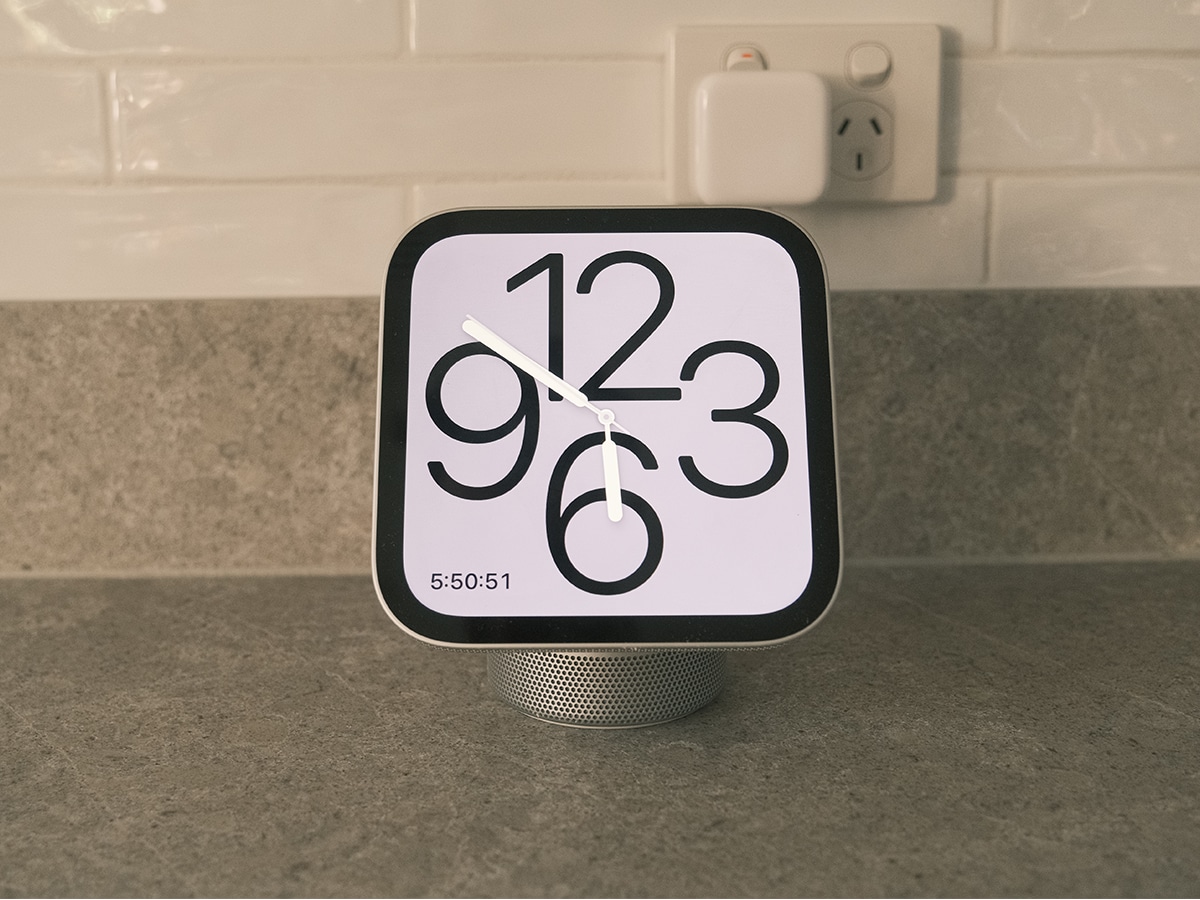
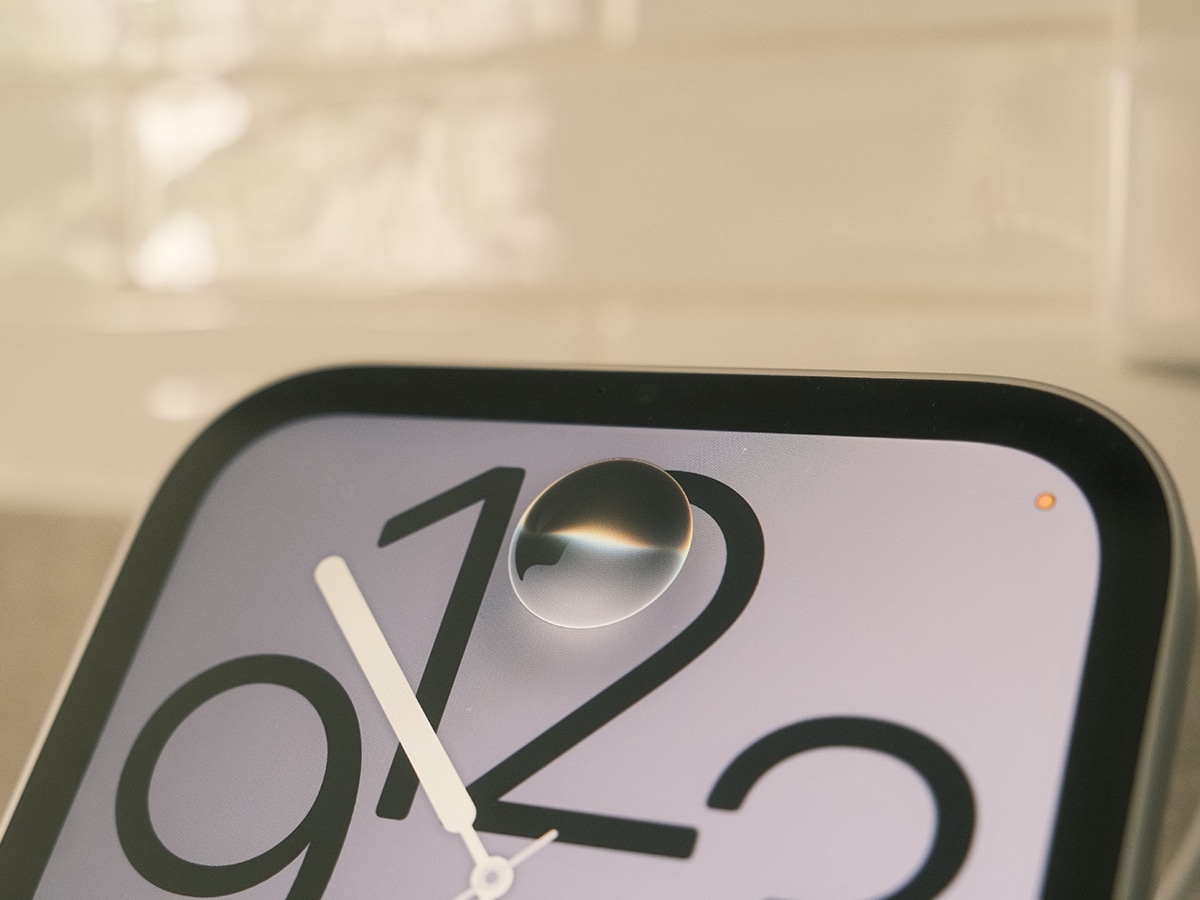
On paper, a 7-inch screen (6.98 inches diagonally, accounting for rounded corners) sounds rather small, but the 1:1 square aspect ratio provides a pretty generous 1088 x 1088 canvas at 220 pixels per inch.
To keep that panel legible whether you’re standing across the living room or chopping vegetables inches away, Apple built a distance-adaptive interface. From across the room, HomeView enlarges the typography to display simple, glanceable data such as today’s high and low temperatures or active timers. Walk closer, and the UI transitions to reveal hourly forecasts, interactive widgets, and detailed Siri responses.
The display’s luminance range is equally impressive in daily use. Under harsh midday kitchen sunlight, True Tone and auto-brightness push the IPS panel up to 500 nits. Then at night, HomeView dials its backlight down to just 0.3 nits (the lowest display brightness Apple has ever engineered). Placed on a bedside table, it eliminates the harsh grey backlight glow that makes conventional smart displays distracting in a pitch-black bedroom. You can also cycle through 12 customisable faces, including Shared Albums, curated Memories, Snoopy animations, Fade (which shifts shadows like a sundial), and Flow, an interactive art face that reacts dynamically to your physical movement.
4. Conversational Siri AI with Onscreen Awareness
Just as iOS 27 overhauled voice control in the car with CarPlay, HomeView introduces Siri AI (available in beta on HomeView software version 27.2) to move beyond rigid smart-speaker commands.
I’ve been using it a tonne when I follow a recipe in Safari and realise I’m missing an ingredient. You can ask Siri for substitutes on the spot without explaining what you’re cooking, as it already knows. Similarly, if a friend texts you their street address in Messages, you can ask Siri to save it directly to their contact card. Because any voice thread you start on HomeView automatically syncs to the Siri app, you can access it across your iPhone, iPad, Mac, Apple Watch, and Apple Vision Pro, so you can pick it up later.
NOTE: While general world knowledge questions, onscreen recipe assistance, and smart home controls work directly on HomeView, personal context requests (such as checking package deliveries or pulling details from Messages and Calendar) and expressive Siri voices require a paired Apple Intelligence-enabled iPhone or iPad on the same Wi-Fi network.
5. Spatial Audio Acoustics and Nine-Camera Live Monitoring
Think of the HomeView as a home hub for HomeKit and Matter accessories. It comes with two dedicated dashboards: Home Modular face gives you one-tap widgets for lights, door locks, and thermostats (including Adaptive Lighting and Adaptive Temperature), while the Home Camera face livestreams up to nine security camera feeds simultaneously with tap-to-unlock door controls.
It also includes Sound Recognition to alert your personal devices if it hears a smoke or carbon monoxide alarm, plus natural-language video descriptions and searchable clips for HomeKit Secure Video subscribers with a paired Apple Intelligence device.
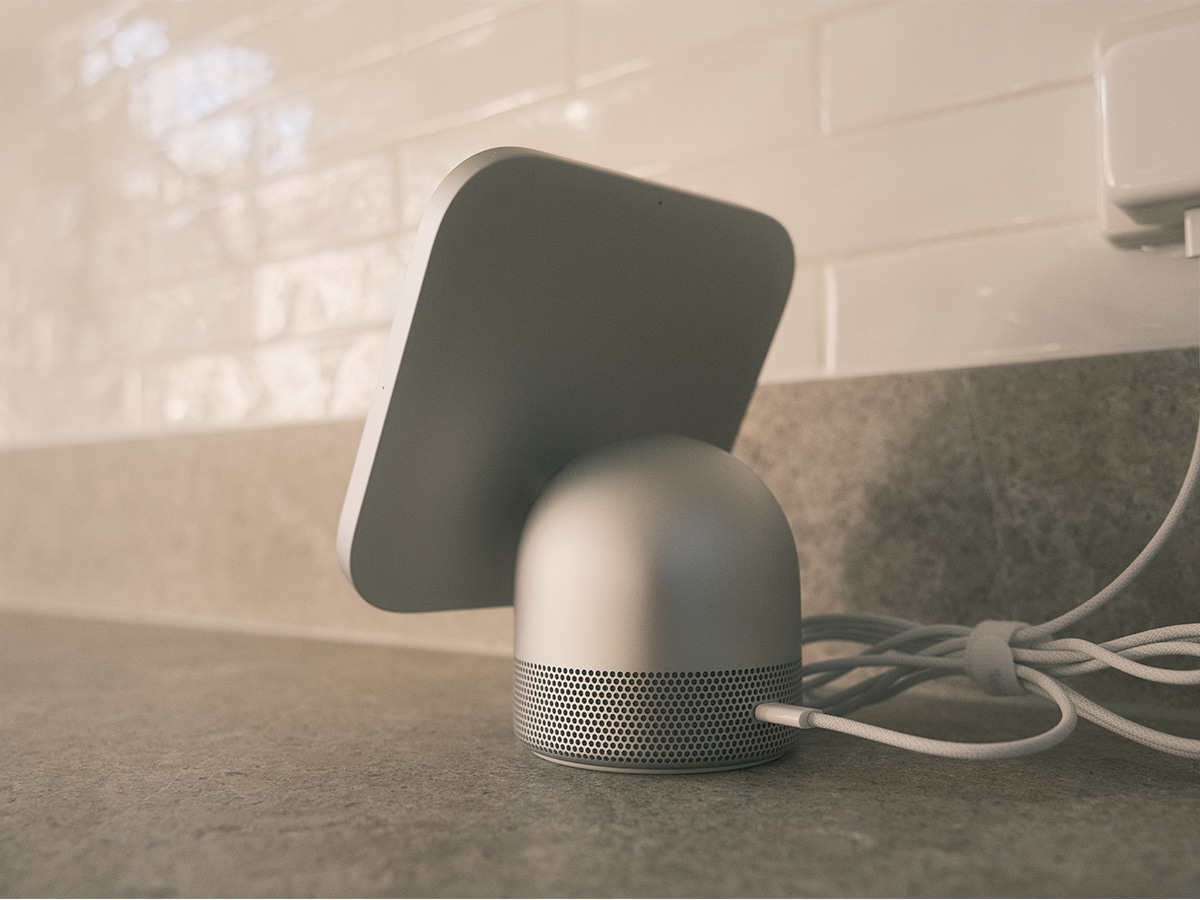
But what I really want to focus on is the audio front, where Apple avoided the thin, tinny sound that plagues most tabletop smart speakers. The benchtop model pairs two custom full-range drivers behind the display with a down-firing woofer and dual force-cancelling passive radiators inside its weighted, 100 per cent recycled aluminium domed base. Powered by computational audio and an internal accelerometer that detects the screen’s tilt angle, it delivers genuine low-end weight and Spatial Audio with Dolby Atmos, and links with HomePod or AirPlay speakers for multiroom playback.
If you opt for the Wall Mounted version, keep in mind that it omits the base woofer (relying on two on-wall tuned drivers) and requires separate purchases for compatible Schneider Home wall mounts, cables, and power adapters.
Verdict
While these features make the Apple HomeView the best smart home hub I’ve ever used, there are a couple of catches you need to weigh up before clearing space on your kitchen bench.
Neither model has an internal battery, meaning permanent wired power via USB-C is mandatory. Unlike an iPad that you can carry from the kitchen to the couch, HomeView is tethered to wherever you have a spare wall outlet. If you’re eyeing the Wall Mounted variant for a hallway or entryway, keep in mind that it also drops the tabletop model’s down-firing woofer and requires you to buy compatible Schneider Home mounts, cables, and power adapters separately.
Second, HomeView can’t stand on its own without a paired Apple device. Unlocking personal context requests in Siri AI across Messages, Calendar, and Reminders, as well as expressive voices, requires a paired Apple Intelligence-enabled iPhone or iPad on the same Wi-Fi network. Because it skips an App Store and builds media support on Apple’s CarPlay framework, many native apps that you might want to use won’t be available at launch.
If you can live with a permanent power cord and already run an iPhone household, the tabletop HomeView is the best smart home hub for your home. To see how the speakers, multi-camera feeds, and Siri AI held up across a full week of daily testing, read my complete Apple HomeView review here.

























Comments
We love hearing from you. or to leave a comment.