

Updated:
Readtime: 30 min
Every product is carefully selected by our editors and experts. If you buy from a link, we may earn a commission. Learn more. For more information on how we test products, click here.
It’s been a few years since you’ve worked on your work-from-home (WFH) setup. Your devices are starting to show their age. Your new MacBook M5 can push a higher resolution than your current monitor can muster. You’ve learnt about Thunderbolt ports, and you want in. These are all things we went through at the start of this year, and we upgraded our WFH setup to a new, professional workflow built around storage, RAM, Thunderbolt, and a little RGB for the vibes.
Having now gone through the process of upgrading our home office setup, we’re here to share all the tips and tricks that we learned along the way.
Over the years, as we tested the best tech products money can buy and applied them in our home office, we learned a few things. But if there’s a takeaway beyond the silicon and the screens, we quickly realised that true productivity is holistic. It’s the ergonomic chair that saves your lower back, the ambient lighting that stops your eyes from burning, and the simple desk mic that ensures you actually sound like a professional on your Teams calls. This is a long guide, so strap in. It covers every single aspect of your daily grind. Whether you’re building a brand-new space from scratch or just looking to swap out a tired keyboard, these are the essential investments to future-proof your office and elevate your everyday workflow.
Laptop or PC
You have to rethink your baseline performance expectations these days, which might involve upgrading your (likely) outdated laptop or PC. If you’re doing standard office work, the new baseline for performance is 16GB of RAM. Operating systems and applications now rely on local, on-device AI, and anything less could leave you bottlenecked. If you work in creative fields, 3D design, or with large data sets, consider 32GB to ensure your machine isn’t gasping for air when you have dozens of browser tabs open alongside applications like Photoshop and Davinci Resolve.
Unless you plan to keep your laptop plugged in permanently, consider a laptop instead of a PC. Apple’s Silicon (the M-series) and the newest ARM-based Windows chips (like the Snapdragon X Elite) have improved battery life and thermal efficiency, which means they perform better on the desk and on holiday. We prefer fanless designs, like the MacBook Air we’ve selected below, which offer dead-silent operation and rarely heat up. However, if your day job involves rendering video, compiling massive codebases, or intense multitasking, you will want a machine with active cooling (fans) to prevent thermal throttling during sustained workloads.
Finally, prioritise connectivity and form factor. Wi-Fi 7 is rolling out rapidly, and Thunderbolt 4 or 5 ports are essential if you plan to connect to high-speed external storage or multiple monitors. We love an ultra-light laptop as much as you do, but shrinking the chassis often means sacrificing ports and port quality.
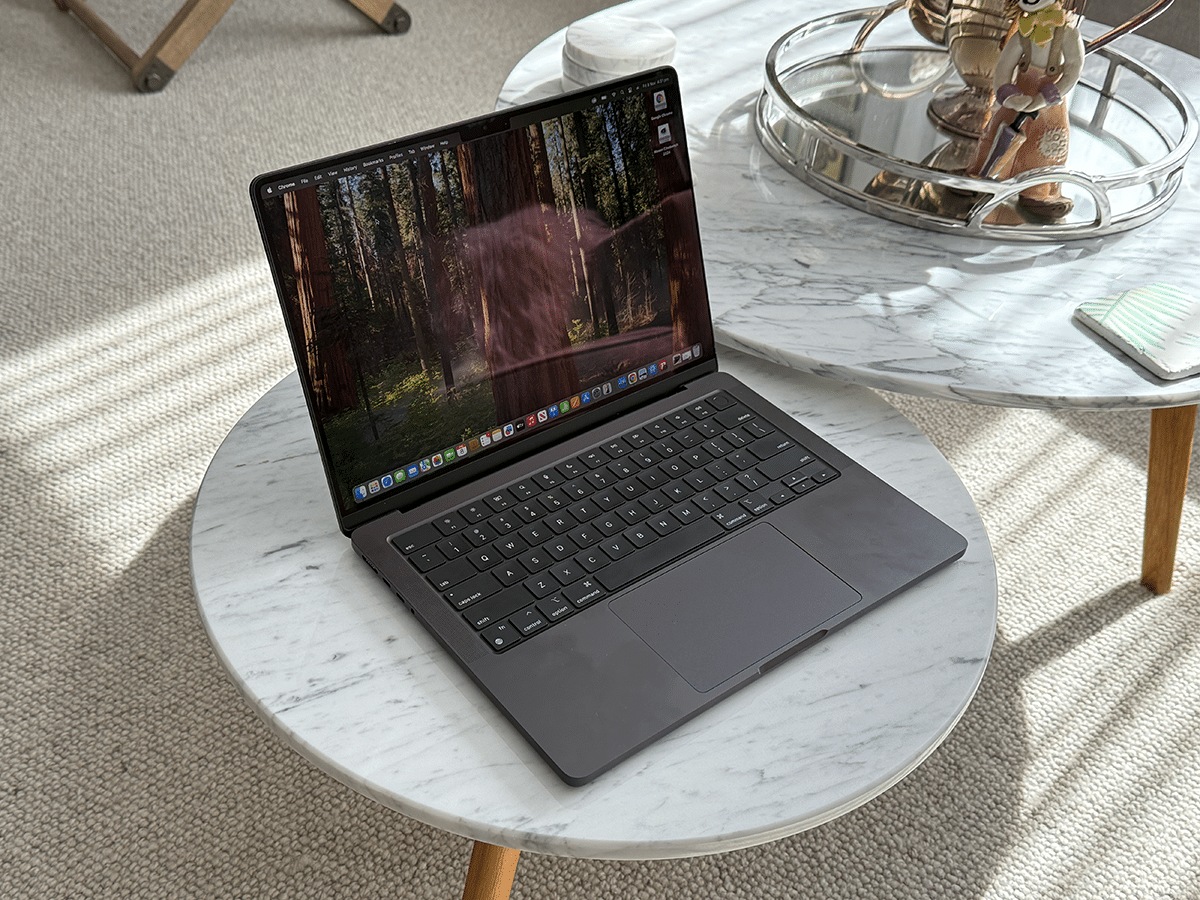
Apple MacBook Air M5 (from AUD$1,799)
The M5 chip represents a meaningful generational leap, firmly establishing the MacBook Air as a zero-compromise machine for the vast majority of users. Under the hood is the 3nm M5 silicon, featuring a 10-core CPU, an upgraded GPU, and dedicated neural accelerators (that’s AI). This means it effortlessly balances heavy multitasking, 4K video edits, and localised AI processes, all while remaining completely fanless and dead silent. It’s important to note that Apple has finally updated the baseline specifications to meet modern demands, outfitting the entry-level model with 16GB of unified memory and 512GB of SSD storage that reads and writes significantly faster than previous iterations.
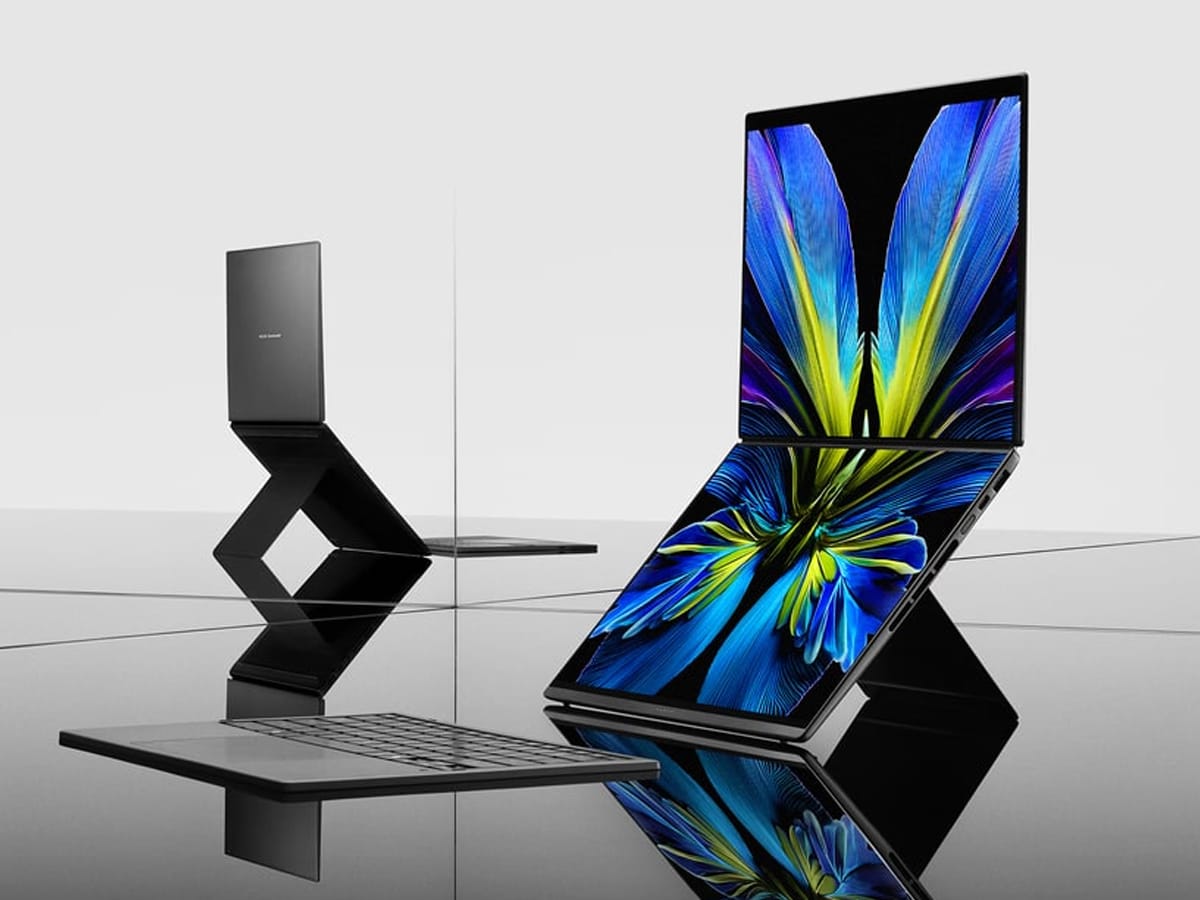
ASUS Zenbook DUO (from AUD$2,599)
Here’s a little something different, but still worth considering if you don’t want to run multiple external displays. The ASUS Zenbook DUO alters portable multitasking by replacing the traditional keyboard deck with a second 14-inch 3K OLED touchscreen at 120Hz. Supported by a built-in kickstand and a detachable Bluetooth keyboard, it transitions from a standard clamshell into a vertical dual-monitor setup. Powered by Intel Core Ultra processors and up to 32GB of RAM, it effectively manages intensive workflows across both screens. Despite the dual-screen form factor, the practical connectivity remains, including two Thunderbolt 4 ports for charging and display output, a standard USB-A port for legacy devices, and an HDMI 2.1 port. This is a great choice for remote workers who need additional screen real estate while travelling but want connectivity when plugged in at home.
If you’re not interested in a MacBook, the Dell XPS 16 combines a great design with substantial computing power. Housed within its CNC-machined aluminium chassis is a 4K+ OLED touch display, complemented by a seamless glass palm rest, a haptic trackpad, and an illuminated capacitive function row. Internally, it’s driven by Intel’s Core Ultra processors and dedicated NVIDIA RTX graphics, making it highly capable of handling 3D rendering and complex video timelines. Connectivity is streamlined yet effective, featuring three Thunderbolt 4 ports that support high-bandwidth data transfer, power delivery, and multiple external displays, along with a microSD card reader and a 3.5mm headphone jack.
Apple MacBook Pro M5 (from AUD$2,699)
When a fanless design is insufficient, the MacBook Pro M5 provides the active cooling needed for sustained, thermally intensive workloads. Equipped with internal fans, it allows the top-spec M5 Pro and M5 Max chips to execute demanding tasks – such as 8K video rendering, 3D modelling, and local AI generation – without thermal throttling. The 120Hz Liquid Retina XDR display delivers excellent peak brightness and deep contrast for colour-accurate work. It also features extensive connectivity for creators, offering three Thunderbolt 5 ports for high peripheral bandwidth, a dedicated HDMI 2.1 port for immediate monitor output, an SDXC card slot, and MagSafe 3 charging. It functions effectively as a portable desktop replacement, but is equally at home for demanding creative professionals.
Despite its compact five-by-five-inch footprint, the redesigned Mac Mini delivers substantial desktop performance. It’s the best option for those who don’t want to use their laptop as a desktop hub, and by integrating Apple Silicon and a new baseline of 16GB of unified memory into a micro-chassis, it handles demanding tasks while operating quietly. The updated design introduces front-facing USB-C ports and a headphone jack for easier access, while the rear panel houses multiple Thunderbolt ports, Gigabit Ethernet, and an HDMI connection to support multi-monitor configurations. It serves as a highly capable and cost-effective foundation for a home office, freeing up your budget to invest in high-quality OLED displays, ergonomic seating, and premium peripherals.
Monitors
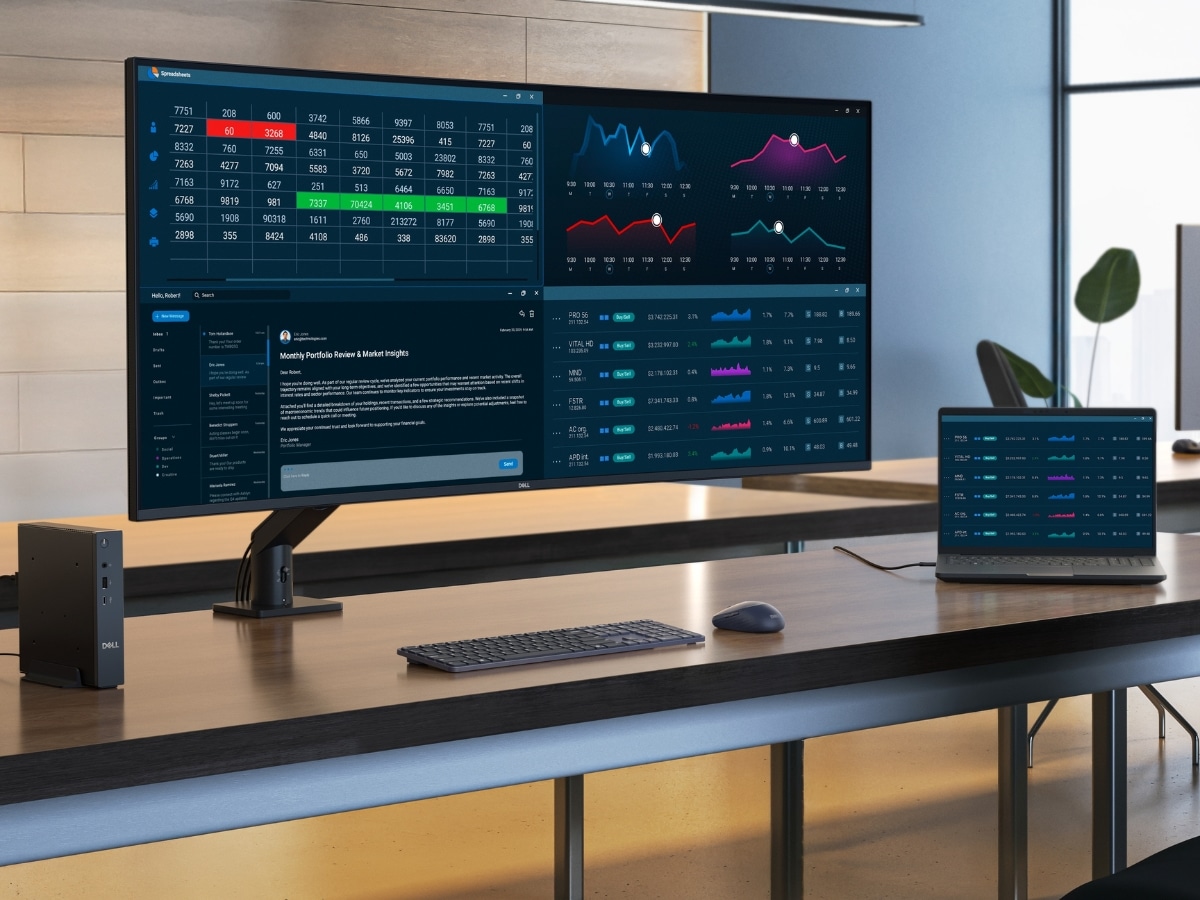
This is where you’ll view all your content, so it’s important that we explain the panel technology today. Previously, OLED and QD-OLED monitors were reserved for hardcore gamers. That’s no longer the case, as they now deliver perfect, inky blacks and infinite contrast, reducing eye strain in dark mode. However, if your day consists entirely of static spreadsheets and text documents, we recommend an IPS Black panel instead. It’s a smarter, safer choice that delivers excellent contrast with no risk of OLED burn-in.
Resolution and refresh rate are your next major considerations. You can choose any screen size that fits your space, but we strongly recommend a 32-inch 4K monitor as the absolute minimum to avoid jagged or blurry text. Do not settle for a 60Hz refresh rate either, as a 120Hz (or higher) monitor is what new computers are capable of outputting via Thunderbolt 4 ports, and it makes scrolling through documents and moving your cursor feel buttery smooth, reducing micro-stutters that subconsciously fatigue your eyes over an 8-hour workday.
When expanding your digital real estate with a second monitor, more width isn’t always better. Ultrawide setups can lead to severe neck strain from constantly panning your head left to right. This is why vertical (or near-square 16:18) monitors have surged in popularity. They match the natural top-to-bottom flow of websites, code, and chat apps, allowing you to view massive amounts of information with just a flick of your eyes rather than a twist of your neck. We run our Claude on a second vertical screen to check activity while working from the main screen.
When shopping for a second screen, prioritise a matte screen finish to combat harsh overhead cafe lighting, and ensure it reaches at least 300-400 nits of peak brightness. Crucially, it must operate via a single USB-C cable for both video and power, so you don’t have to hunt for a second wall outlet just to turn your screen on.
Lastly, treat your monitor as the central nervous system of your desk. Look for displays with built-in Thunderbolt hubs and Power Delivery (PD) to avoid spending hundreds of dollars on a Thunderbolt hub. You can now find monitors with 90W+ of PD, which means you can plug a single cable into your laptop to output video, connect your webcam and keyboard, and charge your computer simultaneously. If you use both a work laptop and a personal PC, a monitor with a built-in KVM switch lets you share a single keyboard and mouse between the two machines.
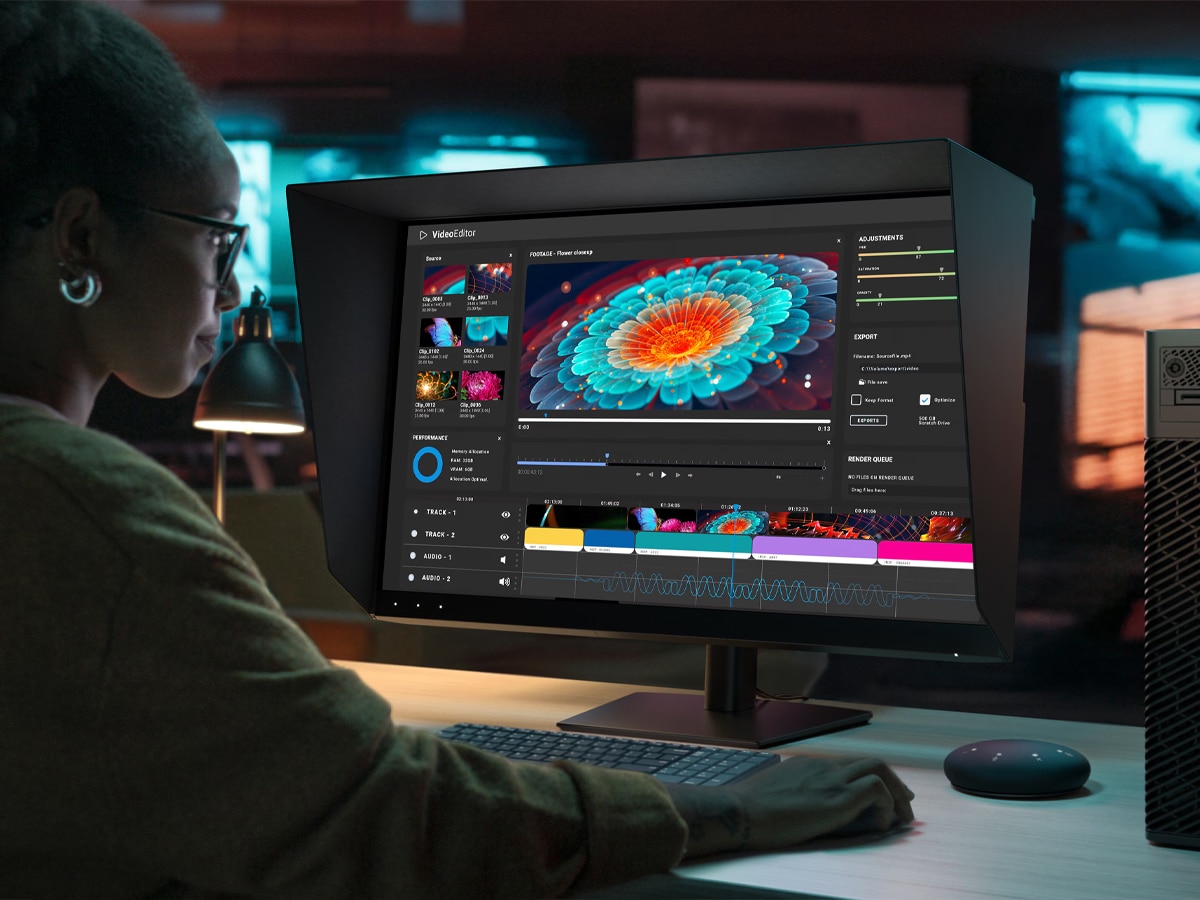
Main Screen (Monitor)
These are the main screens that we recommend:
Dell UltraSharp 32 4K QD-OLED Monitor U3226Q (from AUD$1,899)
Dell is making some of the best monitors on the market right now, so we’ve included two options for you here. First is the Dell UltraSharp 32 4K QD-OLED monitor, which integrates Quantum Dot OLED technology. The panel delivers true blacks and an exceptionally wide colour gamut, making it suitable for creative professionals who require strict colour accuracy in photo and video editing. Beyond creative work, the infinite contrast ratio significantly reduces eye strain during prolonged use, particularly when reading text in dark mode. It features all the connectivity options we look for, including USB-C with power delivery, so you can connect and charge your laptop efficiently while keeping your workspace clean and uncluttered.
Dell UltraSharp 32 4K Thunderbolt Hub Monitor U3225QE (from AUD$1,262)
Designed for users whose primary focus is connectivity and workflow efficiency, the Dell UltraSharp U3225QE is one of the bargains of our list, working as a comprehensive docking station built directly into a 32-inch 4K display. It utilises an IPS Black panel, which provides double the contrast ratio of a standard IPS monitor, resulting in deeper blacks and sharper text without the burn-in risks associated with OLED. However, the standout feature is the integrated Thunderbolt 4 hub, which delivers up to 140W of power to charge laptops while providing downstream ports for peripherals and Ethernet. Additionally, the built-in KVM switch allows you to seamlessly share a single keyboard and mouse between a work laptop and a personal desktop, streamlining multi-device desk setups.
Apple Studio Display XDR (from AUD$4,799)
Finally, we have the only professional option short of an $11,000 ASUS ProArt: the Apple Studio Display XDR. It represents the pinnacle of the brand’s displays, featuring a 27-inch 5K Retina display with a mini-LED backlight comprising 2,304 local dimming zones, delivering 1,000 nits of sustained brightness and peaking at an astonishing 2,000 nits for HDR content. Beyond its exceptional contrast and strict colour accuracy across the P3 and Adobe RGB gamuts, the panel introduces a 120Hz Adaptive Sync refresh rate, providing smooth motion for video editing, 3D rendering, and general macOS navigation. Like the Dell above, the Studio Display XDR monitor acts as a desktop hub, offering two next-generation Thunderbolt 5 ports (including an upstream connection that delivers 140W of charging power to high-end MacBook Pros) alongside two downstream USB-C ports. Equipped with a 12-megapixel Centre Stage camera and a sophisticated six-speaker audio system, it’s the ultimate, uncompromising single-cable workstation display in our books, but you’ll pay for it.
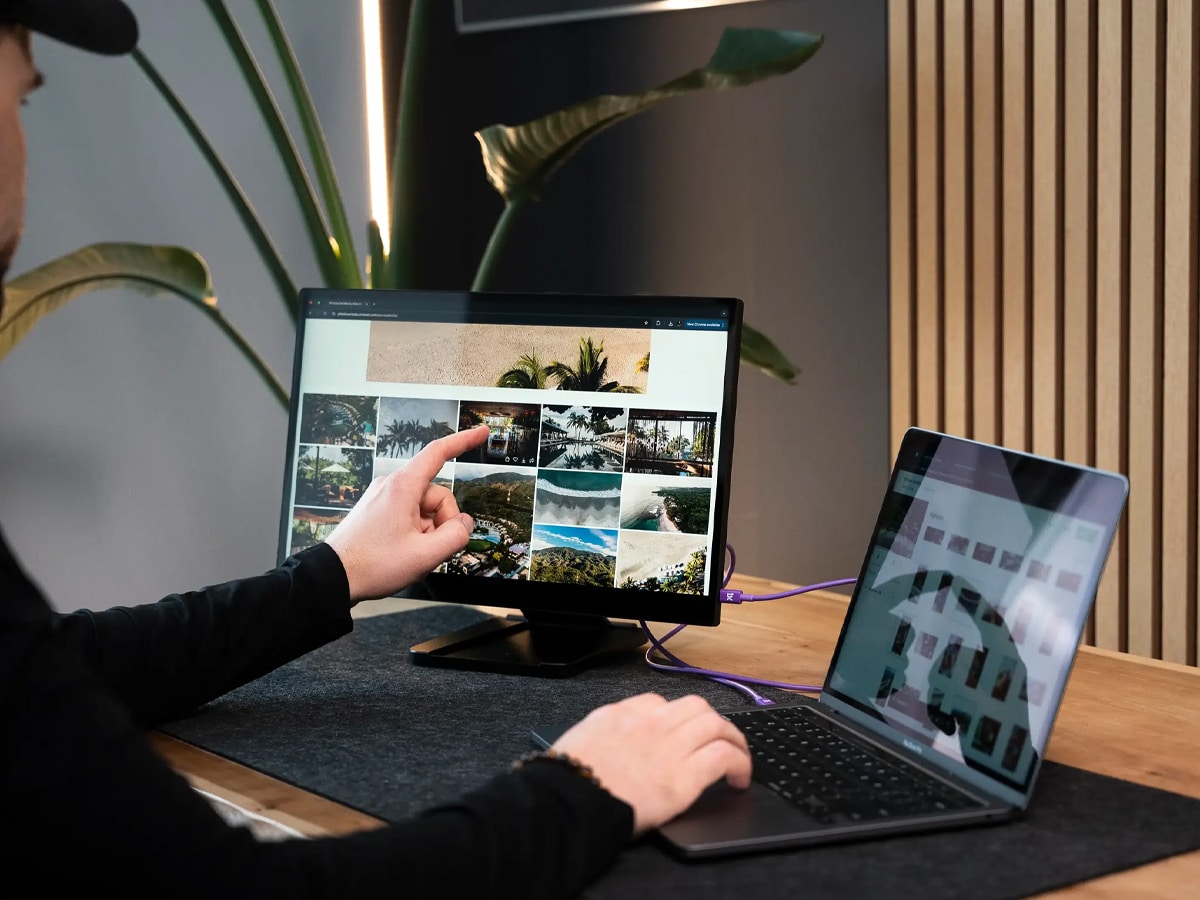
Second Screen (Portable or Vertical)
This one is close to our hearts as it’s designed in Australia. The espresso Pro is a portable monitor built from aerospace-grade aluminium, but as it connects via a single USB-C cable for video transmission and power, eliminating the need to locate a second wall outlet when working remotely, it’s become a prime choice as a second screen at home too. The display offers strong peak brightness and resolution, making it legible even in environments with harsh overhead lighting, such as cafes or hotel lobbies. When paired with its magnetic stand, as we have at home, it provides flexible viewing angles and a responsive touchscreen.
Desks and Chairs
We could sit here and argue that the chair is the most important piece of the home office set-up. It can literally make or break your ability to work, as you’ve probably experienced with cheaper chairs that throw your back out of alignment or give you a big pain in the rear end. When we evaluate an ergonomic chair, padding is actually the least important metric these days (they’re all quite cushy). What you need is dynamic adjustments (seat depth sliders to support your thighs, 4D armrests that move inward to support typing, and lumbar systems that flex with your spine as you lean back). It’s why we prefer mesh over foam: it distributes weight evenly and allows heat to escape.
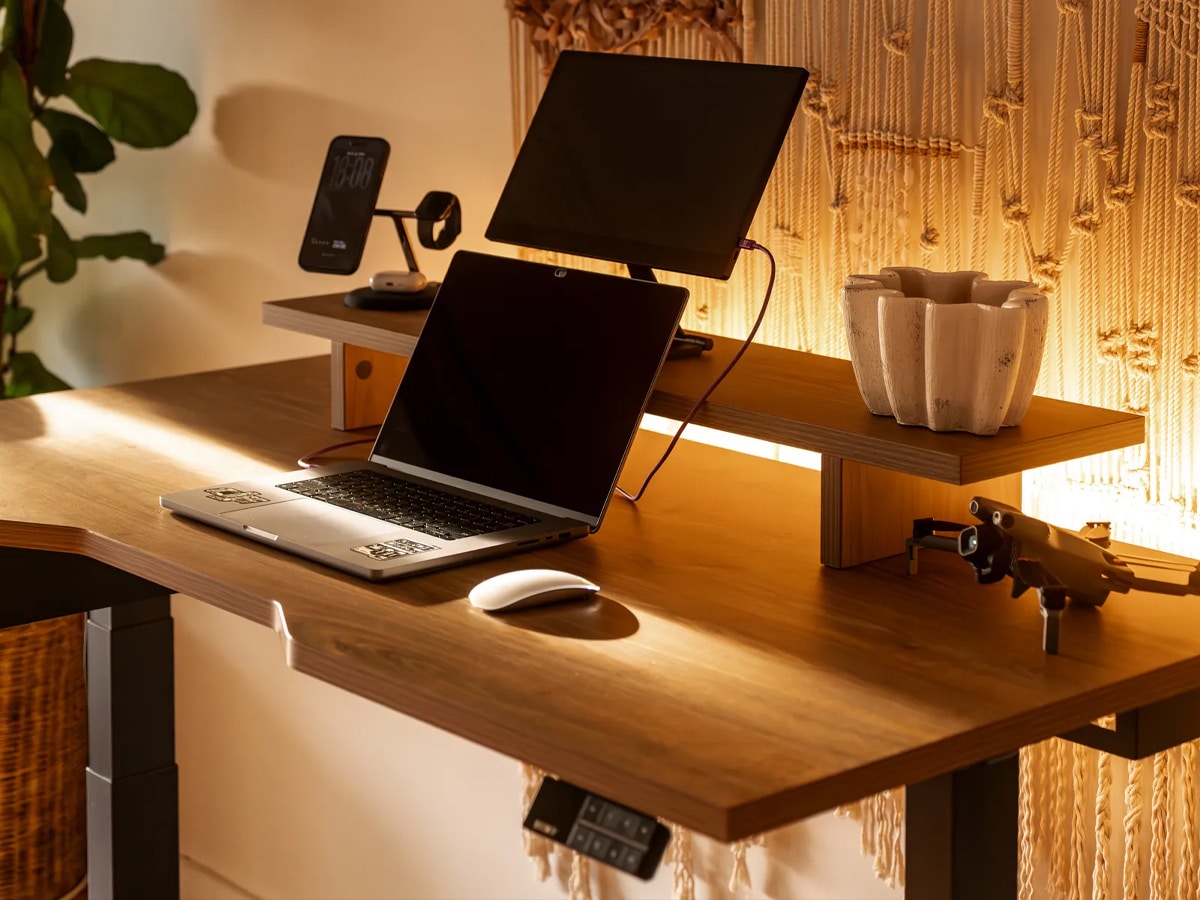
Then there’s the desk itself. If you’re clever with your set-up, and you minimise cables with Thunderbolt docks, the best option is a standing desk. However, stability is the golden rule. Cheap, single-motor, two-legged standing desks will shake and wobble when raised to standing height. Look for dual- or quad-motor systems, thick steel frames, and heavy desktop materials (such as solid wood or dense melamine) that ground the structure. Also, look for a desk with an anti-collision sensor that stops it from moving if it hits a cabinet or your knees.
Ultimately, the goal of modern WFH ergonomics is constant micro-movement. Don’t sit still for eight hours, and don’t stand perfectly still for eight hours. Create a set-up that’s flexible, allowing you to shift your posture and engage different muscle groups throughout the day.
Desky Dual Scalloped Melamine Sit Stand Desk (from AUD$949)
We have lived with our Desky standing desk for years now without fault. Their latest Desky Dual Scalloped Melamine Sit-Stand Desk addresses the primary flaws of entry-level standing desks by prioritising structural stability and intelligent cable management. With a heavy-duty dual-motor lifting system housed within a reinforced steel frame, it ensures smooth, quiet height adjustments while eliminating keyboard wobble at maximum standing heights. However, the standout feature for us is the scalloped cut-out along the rear edge of the desktop, which allows thick cable bundles and heavy-duty monitor arm clamps to pass straight down to the floor without forcing the desk away from the wall. You’ll also find other nice-to-have additions, such as an anti-collision sensor to prevent damage during movement and programmable memory presets for seamless sit-to-stand transitions.
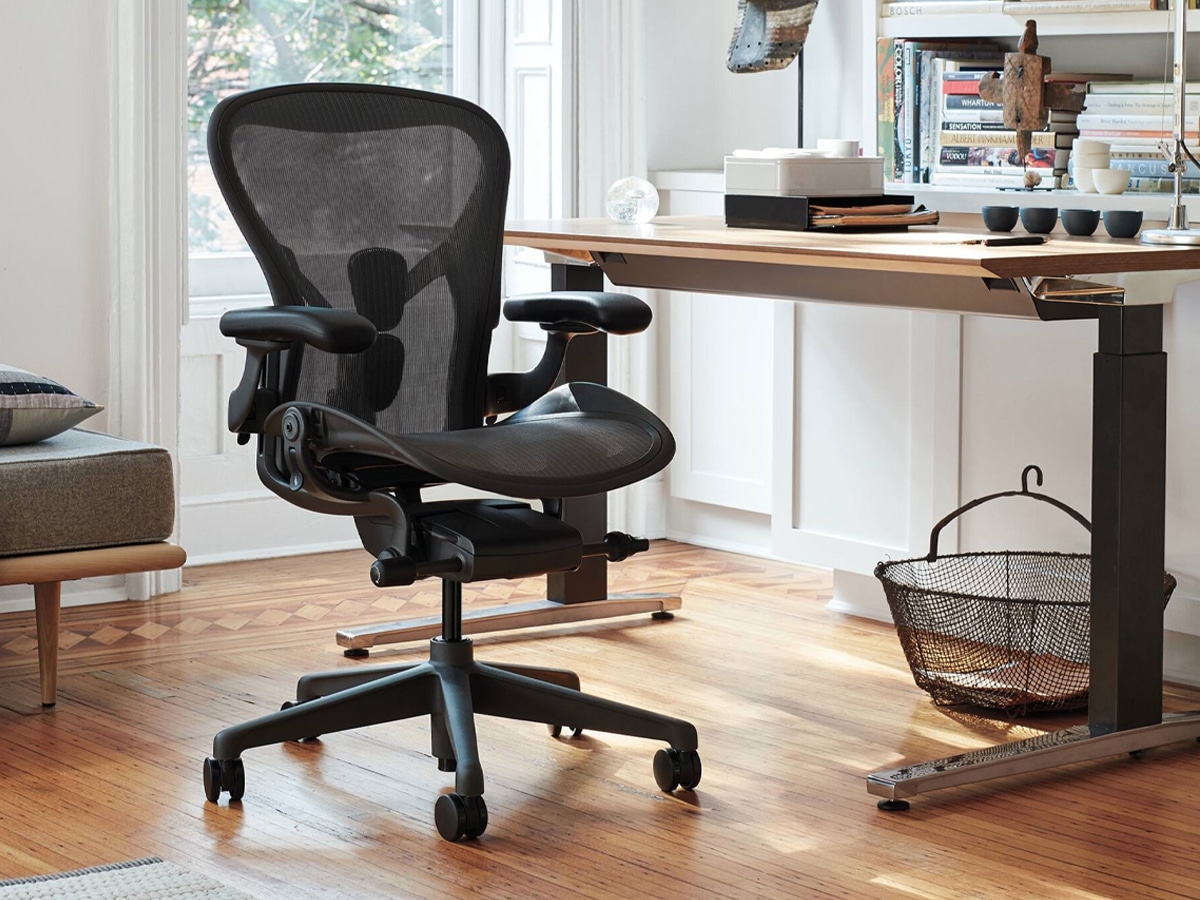
Throne (Ergonomic Chair)
Herman Miller Aeron Chair (from AUD$2,310)
The Herman Miller Aeron has been the benchmark for ergonomic office seating for years and years. It’s so good that we added one to our home office, alongside the Secretlab Titan EVO we’ve included below. Of course, the price is painfully high, but you can always find a deal. When you do, you’ll get a meticulously engineered chair designed to support prolonged, focused work. Its signature Pellicle mesh suspension system eliminates pressure points while allowing body heat to dissipate, keeping you cool during extended sitting shifts. The chair’s defining feature is the highly adjustable PostureFit SL hardware, which actively supports both the sacral and lumbar regions to encourage the natural forward tilt of the pelvis and the inward curve of the spine. Simply put, it’s the most comfortable desk chair we’ve sat in, and you know it’s not harming your back or posture.
Secretlab Titan EVO (from AUD$749)
While originating in the gaming sector, we’ve also been rocking the Secretlab Titan EVO for a few years alongside our Herman Miller, and it’s proven itself as a highly capable ergonomic solution for our WFH setup. It offers a firmer cold-cure foam seat base that promotes active sitting (rather than sinking), and the brand says this helps maintain proper pelvic alignment throughout an eight-hour day. We can attest to that. However, its most impressive technical feature is the integrated 4-way L-ADAPT lumbar support system, which allows you to adjust both the height and depth of the internal backrest contour via lateral dials. Paired with a magnetic memory foam headrest and fully adjustable 4D armrests that can be positioned to support your elbows perfectly while typing, it delivers customisable ergonomics at a very fair price point.
Keyboards, Mice and Hubs
Don’t discount a quality keyboard and mouse. It’s the best way to find a genuine, tactile connection to your devices. With keyboards, the major choice is between the satisfying, customisable mechanical keyboard and the whisper-quiet, laptop-like feel of a low-profile membrane board. We’ve flip-flopped between the two for years. If you go mechanical, understand your switches: “linear” switches are smooth and quiet (great for shared spaces), “tactile” switches offer a satisfying bump without loud noise, and “clicky” switches mimic a typewriter (and will make your spouse hate being in the same room as you at home).
You rarely think about repetitive strain injury (RSI) as the primary enemy of a WFH office. However, it’s something you must consider when purchasing a mouse. Standard, flat mice force your wrist into an unnatural pronated position. Look for ergonomic alternatives, such as those listed below, with an angled tilt or a fully vertical design, so your hand can rest in a natural “handshake” posture. Additionally, look for sensors with high DPI and glass-tracking capabilities, as well as multi-device Bluetooth support so you can instantly switch control from your PC to your tablet (or other devices) at the touch of a button.
Lastly, we have the hub or dock, which has quietly become the unsung backbone of a clean desk setup. If you have a high-end monitor and laptop, don’t cheap out on a generic USB-C dongle that will give you a low-resolution picture and not maximise the capabilities of your expensive WFH setup. Look for a true Thunderbolt 4 or Thunderbolt 5 dock. You need to verify that its Power Delivery (PD) rating matches or exceeds the power output of your laptop’s charger (usually 65W or more), so your battery doesn’t drain while plugged in. A premium dock like the one we’ve selected below supports dual 4K monitors, gigabit Ethernet, and fast file transfers without overheating or screen flickering.
Keyboard
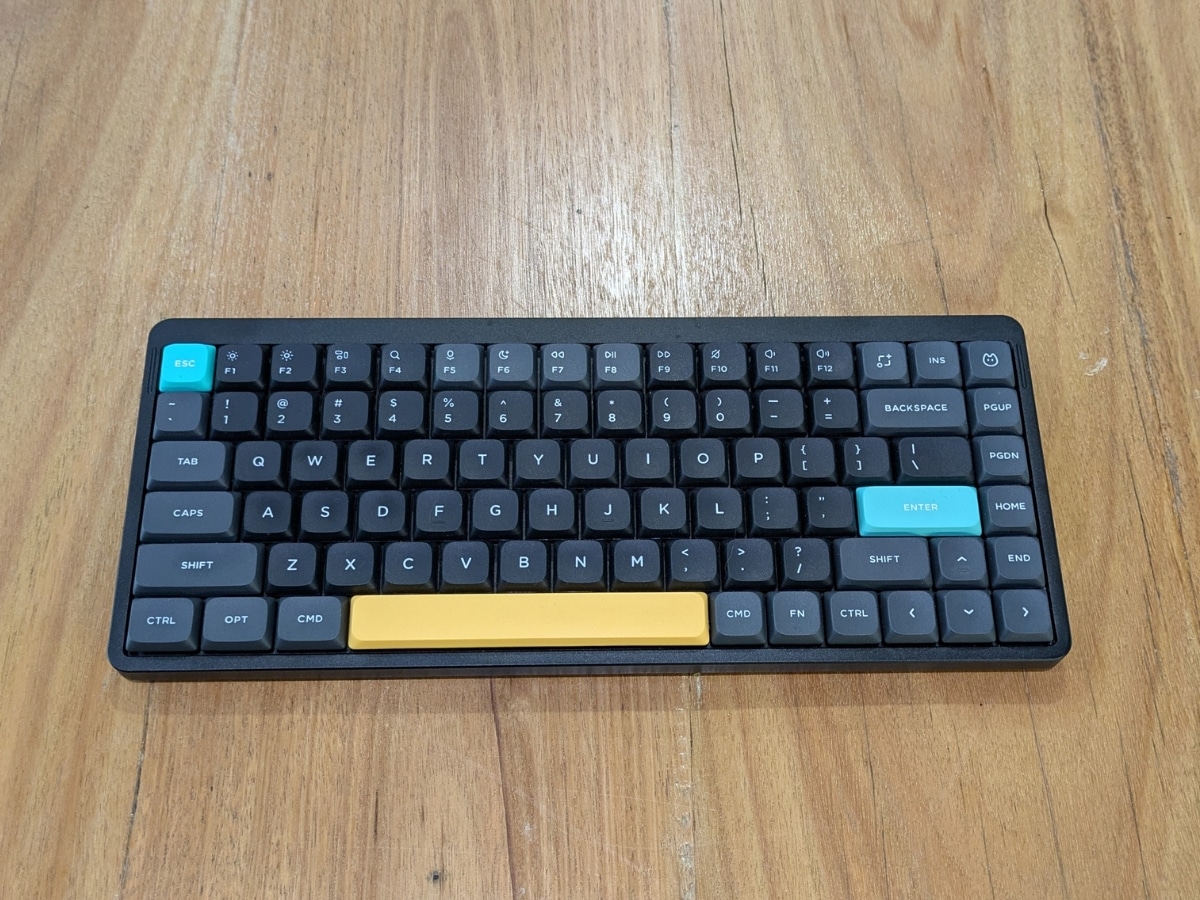
We still haven’t used a keyboard that offers better value for money than the NuPhy Air75. It’s a highly refined, low-profile mechanical keyboard that successfully bridges the gap between keyboard nerd ‘clicking’ and everyday practicality. With an ultra-thin aluminium frame and low-profile switches to reduce the severe wrist extension often caused by traditional, high-profile mechanical boards, you don’t need a palm rest to use it. Despite its slender profile, it delivers excellent tactile feedback and acoustic dampening, featuring durable PBT keycaps that resist the oily shine that develops on cheaper ABS plastics. With robust wireless connectivity – supporting both a low-latency 2.4GHz receiver and Bluetooth pairing for up to three devices – and a compact 75% layout, it’s an excellent, affordable option.
Logitech MX Mini Mechanical (from AUD$229.95)
Spend a little more and you can get yourself into the Logitech MX Mechanical Mini. It offers a compromise for those who want the precise actuation of a mechanical keyboard without the loud ‘clack’ acoustics associated with them. You’ll find low-profile tactile switches that provide a satisfying physical bump when used, while remaining quiet enough for shared office environments or frequent video calls. The keyboard integrates seamlessly into Logitech’s robust ecosystem, utilising the Logi Options+ software for deep key customisation and supporting effortless switching between three connected devices across different operating systems. The extra money also buys you smart illumination that automatically adjusts backlighting based on ambient room conditions and hand proximity.
Glorious GMMK Pro (from AUD$279)
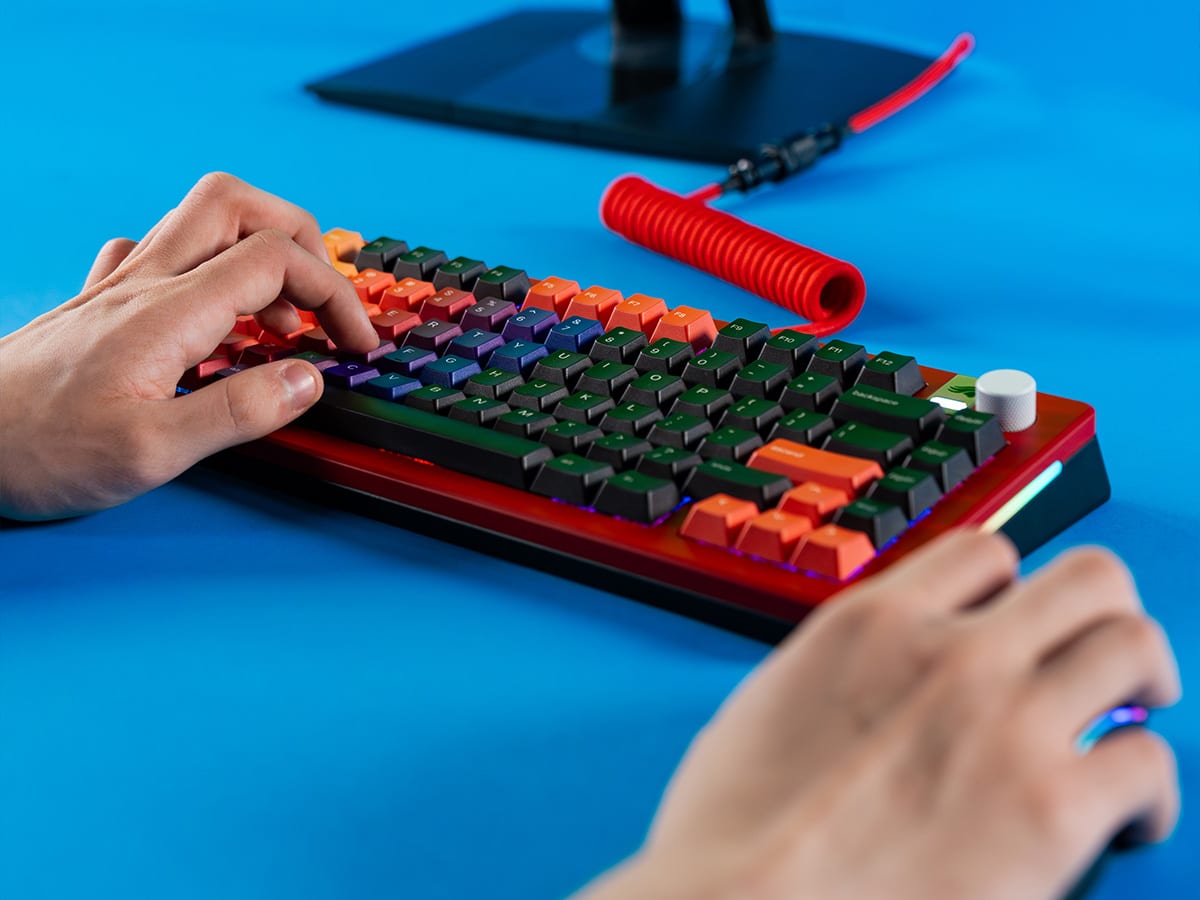
We called this the Porsche of keyboards in our full review, and we stand by that to this day. The Glorious GMMK Pro serves as a premium entry point into the world of custom mechanical keyboards. Built around a heavy, CNC-machined aluminium chassis (really heavy), it utilises a gasket-mounted plate design that naturally dampens acoustic resonance and provides a slightly cushioned typing feel, reducing finger fatigue. You can buy it as a bare-bones kit with a hot-swappable printed circuit board (PCB), but you’ll need to install your own switches and keycaps. This lets you fine-tune actuation force, travel distance, and sound profile. Complete with an assignable rotary encoder for volume or media control and full QMK/VIA software compatibility for complex macro programming, it’s the best choice on our list.
Apple Magic Keyboard (from AUD$229)
We have our Glorious at home, but paired with a Magic Trackpad at work, the Apple Magic Keyboard remains the most seamless peripheral choice for us in the macOS ecosystem. The recent transition to USB-C charging resolves the long-standing inconvenience of relying on proprietary Lightning cables, but its defining feature is the integrated Touch ID sensor (optional), which lets you quickly log in with biometric authentication, authorise Apple Pay transactions, and access encrypted password managers. While the low-profile scissor mechanism lacks the deep travel of a mechanical switch, it provides a stable, consistent actuation across a minimalist aluminium chassis that matches our work aesthetic.
Mouse
Logitech MX Master 4 (from AUD$199)
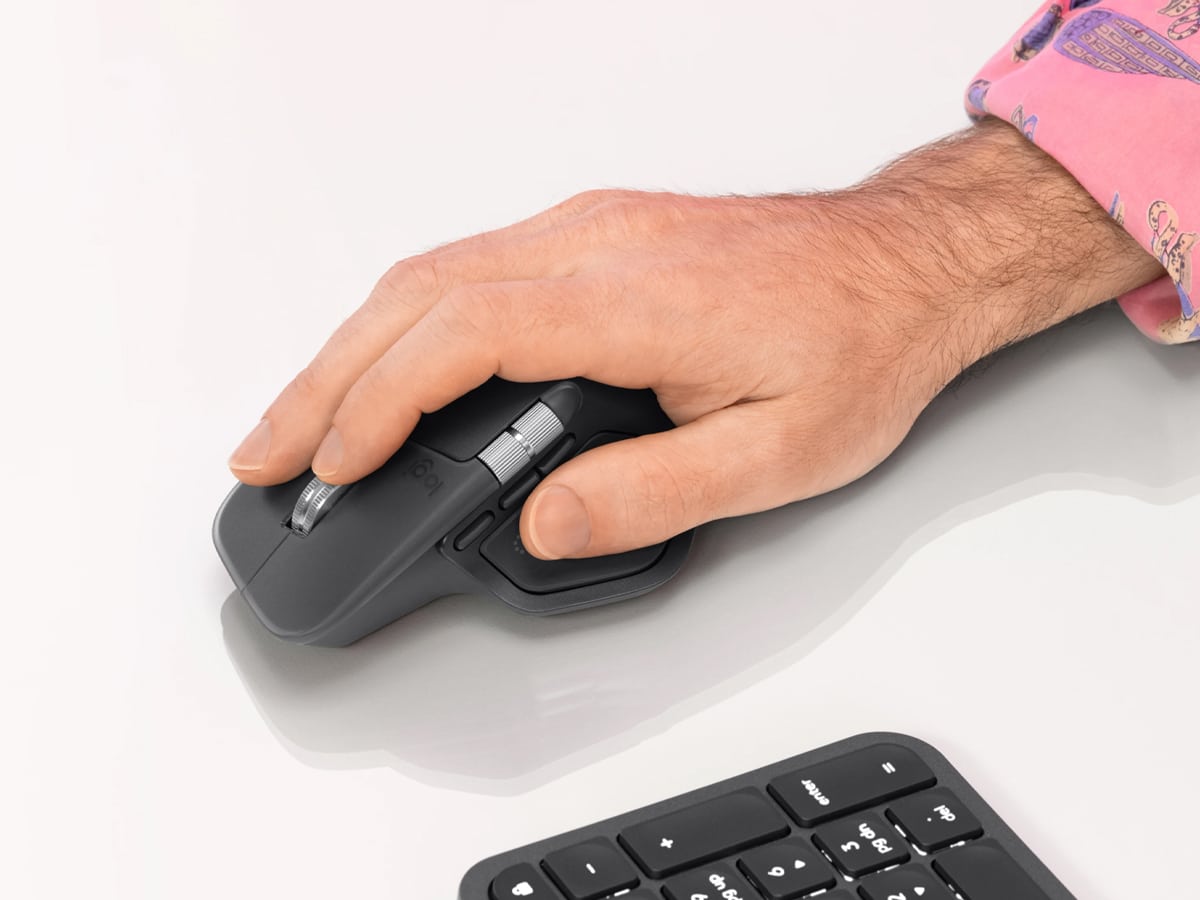
It’s the simplest choice known to mankind. If you want a mouse, you buy a Logitech MX Master 4. The latest iteration of the device has repositioned itself as the definitive productivity mouse through updated ergonomics and advanced sensor technology. The chassis features a distinct tilt that elevates the wrist into a more natural, semi-vertical posture, significantly reducing pronation and median nerve pressure that can lead to repetitive strain injuries. Internally, it’s equipped with an 8K DPI Darkfield sensor, ensuring flawless tracking precision across challenging surfaces, including thick glass desks. The signature MagSpeed electromagnetic scroll wheel allows for rapid, silent navigation through massive spreadsheets or timelines, while the newly integrated, customisable thumb controls provide immediate access to complex macros and application-specific shortcuts. It’s the kind of product you buy once and never have to buy again.
Apple Magic Trackpad (from AUD$209)
Now that we’ve lived with the Magic Trackpad for a few months, we struggle to go back to a traditional mouse. It’s an unmatched interface for navigating the spatial elements of macOS, with a large, edge-to-edge glass surface that allows for fluid execution of multi-finger gestures – such as swiping between full-screen applications, pinching to zoom on high-resolution assets, and entering Mission Control. You also have Force Touch technology that ensures uniform click feedback across the entire surface.
Thunderbolt (USB-C) Hub
D-Link DUF-E01 (from AUD$599.95)
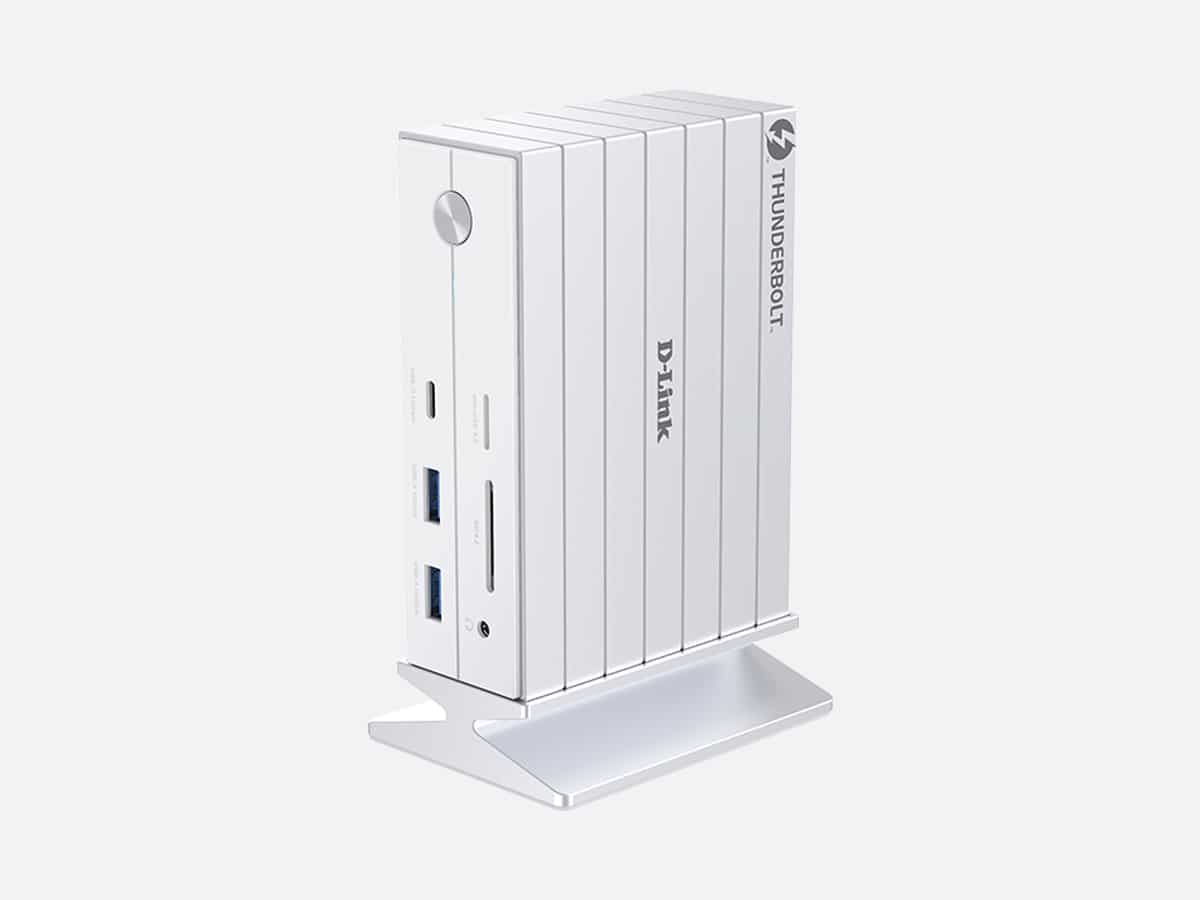
The D-Link DUF-E01 is a heavy-duty, 14-in-1 Thunderbolt 4 docking station engineered to support the most demanding multi-device workstations. By utilising the massive 40Gbps bandwidth of Thunderbolt 4 technology, it reliably drives up to three external displays, including support for 8K resolution on a single screen, without frame drops or visual artifacting. It provides comprehensive peripheral expansion with Gigabit Ethernet for stable networking, multiple high-speed USB-A and USB-C downstream ports, and UHS-II card readers for rapid media ingestion. Crucially, it manages thermal output effectively while delivering consistent power to the host laptop, making it a robust, single-cable solution for complex desktop environments.
Satechi Thunderbolt 4 Dock (from AUD$499.99)
The Satechi Thunderbolt 4 Dock delivers high-end peripheral expansion housed within a sleek, aerospace-grade aluminium chassis that maintains a low profile on the desk. It leverages Thunderbolt 4 architecture to provide three downstream Thunderbolt ports, allowing users to daisy-chain high-speed external NVMe storage arrays or run dual 4K monitors at 60Hz simultaneously. It features an intelligent internal power supply capable of delivering up to 96W of pass-through charging, ensuring that even high-performance 16-inch laptops remain fully powered during sustained, heavy-rendering workloads. Its reliable thermal management and strict adherence to Thunderbolt standards ensure stable data connections without the intermittent disconnects often experienced with entry-level USB-C hubs.
Audio and Video
Video calls are the reality of remote WFH setups, and poor audiovisual quality makes you seem unprofessional. Don’t rely on megapixels or resolution alone, as they can be deceptive. Look at the physical sensor size instead. Larger sensors (like a 1/2-inch or 1/1.5-inch) capture more light, meaning you won’t look grainy in a dimly lit home office.
The newest webcams also utilise AI-driven PTZ (Pan-Tilt-Zoom) on motorised gimbals to keep you perfectly framed, even if you stand up and walk across the room during a presentation.
Contrary to popular belief, the audio is actually more important than the video. People will tolerate a blurry picture before they’ll tolerate echoing, blown-out audio. Unless you’re running a brand-new MacBook (open, not close), skip the built-in microphone entirely. When buying a dedicated microphone, opt for a “dynamic” microphone rather than a “condenser” mic. Condensers are hyper-sensitive and will pick up the dog barking outside and your loud keyboard clicks. Dynamic mics are designed to reject background noise and only pick up what’s spoken directly into them, giving you that rich, isolated podcast sound.
If you already own a pair of Active Noise Cancelling (ANC) headphones, you don’t have to upgrade them straight away. We recommend looking for headphones with “Transparency Modes,” which pipe in outside sound so you can hear your own voice naturally while speaking on a call. Furthermore, ensure your headphones support “Multipoint Bluetooth,” allowing them to be connected to your phone and your work laptop simultaneously, seamlessly switching audio when a call comes in.
Speakers
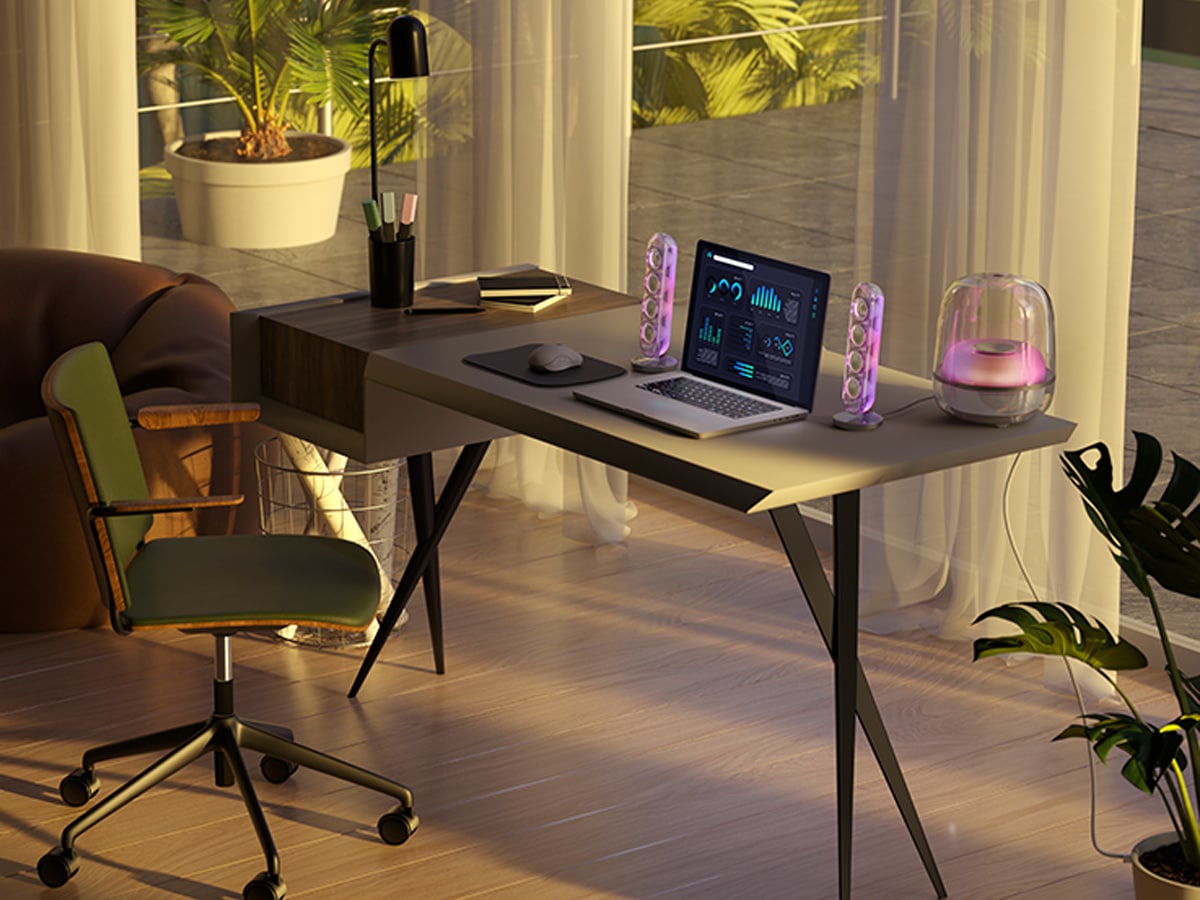
Harman Kardon Soundsticks 5 (from AUD$499)
One of our newest additions to our home office is the Harman Kardon Soundsticks 5. The industrial design is what caught our attention first, but it’s the high-quality sound that got us across the line to purchase them. When you look beyond their iconic transparent aesthetic, this latest generation introduces HDMI ARC connectivity and Auracast support, allowing integration with displays and multi-speaker synchronisation. The dedicated subwoofer delivers a defined, controlled low-frequency response without overwhelming the mid-range clarity produced by the two satellite speakers. Ultimately, they serve as an excellent desktop audio solution for those who require high-fidelity sound for media playback and video conferencing, while also doubling as functional art.

Headphones
Apple AirPods Max 2 (from AUD$999)
The latest and greatest Apple AirPods Max 2 have been refined with updated computational audio capabilities, a new amplifier, “studio-quality” mics, and more. Still constructed from anodised aluminium and a breathable knit-mesh canopy, our weeks of testing showed that they deliver exceptional build quality and comfort over extended listening periods. You won’t use it much at home, but the defining feature remains the class-leading Transparency Mode, which utilises an array of external microphones to pipe in ambient sound with near-zero latency. This lets you hear your own voice naturally during prolonged video calls, reducing vocal fatigue, while the 1.5 times better Active Noise Cancellation easily handles household distractions when deep focus is required.
Sony WH-1000XM6 (from AUD$599.95)
Until we tried the latest Apple AirPods Max 2, the Sony WH-1000XM6 were our absolute favourites, and they remain the best choice when price is considered. They remain the benchmark for Active Noise Cancellation in consumer headphones, engineered to isolate you from disruptive environments. Meanwhile, the proprietary ANC processor effectively reduces a broad spectrum of ambient noise, from low-frequency traffic rumble to mid-frequency household chatter. Crucially for productivity, they feature refined multipoint Bluetooth connectivity, allowing the headset to remain connected to a primary work laptop and a smartphone simultaneously, automatically switching audio output when a call comes in. Supported by a lightweight chassis and over 30 hours of battery life, they are an essential tool for professionals at home and on the go.
Webcam
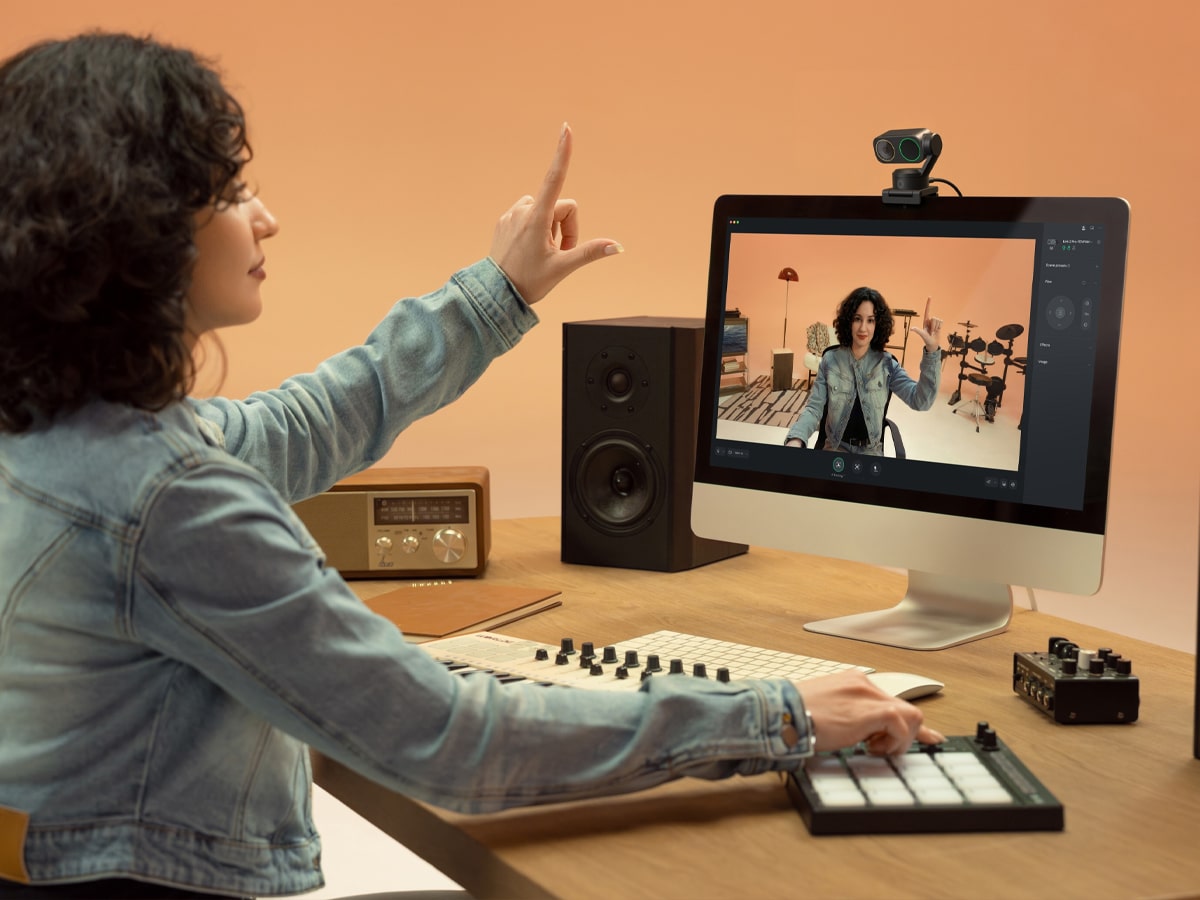
Insta360 Link 2 Pro (from AUD$439)
Like a microphone (we’ll get to that in a minute), the Insta360 Link 2 Pro addresses the fundamental limitations of built-in laptop cameras with a physically larger sensor and motorised gimbal stabilisation. The larger imaging sensor captures more light, resulting in sharper video transmission even in poorly lit home offices where standard webcams struggle. It leverages advanced AI tracking algorithms to automatically pan, tilt, and zoom, keeping the subject perfectly framed within the shot even if they stand up to utilise a whiteboard or move around the room.
Microphone
You may not have considered a mic, but if you take a log of video calls, this is a necessity. The Shure MV6 is our pick of the bunch. Connected via USB-C, the microphone delivers broadcast-quality audio directly to a desktop environment without the need for complex external audio interfaces. Unlike highly sensitive condenser microphones that pick up every background noise, the MV6’s dynamic capsule is engineered with strict off-axis rejection. This means it aggressively isolates the user’s voice while ignoring disruptive ambient sounds, such as loud mechanical keyboard clicks or external traffic. Paired with integrated digital signal processing that manages gain and equalisation in real time, you’ll find the perfect amount of vocal clarity and authoritative presence on your video calls.
Lighting, Power and Vibe
Lighting is a balance between creating a “gamer’s bedroom” with RGB lights and mitigating the harsh glow of your monitor, which can cause significant eye strain. Look into monitor light bars, which clamp to the top of your screen and project light downward onto your keyboard without causing glare on the glass. You should also consider “bias lighting” (soft LEDs placed behind your monitor to illuminate the wall), which reduces the harsh contrast between a bright screen and a dark room.
Underneath the desk, cable management is a necessity. Cluttered spaces severely impact your subconscious ability to focus. If your desk doesn’t come with it naturally, we highly recommend investing in under-desk cable routing trays, magnetic cable wranglers for your charging cords, and proper surge protectors (not just cheap power strips) to protect your thousands of dollars of hardware from electrical spikes.
Finally, the RGB lights. With these, you can curate your “vibe” to create a distinct boundary between your home life and work life. You can buy a high-quality RGB desk mat that grounds your setup and provides an excellent tracking surface for your mouse. If you’re not so interested in RGB, choose materials based on your style: full-grain leather for a sophisticated, executive feel, thick felt to dampen keyboard noise, or microfiber/cloth for precise cursor movement. Plants or modular wall lighting are merely a finishing touch that makes the space visually appealing ensures you actually look forward to sitting down every morning.
Desk Lighting
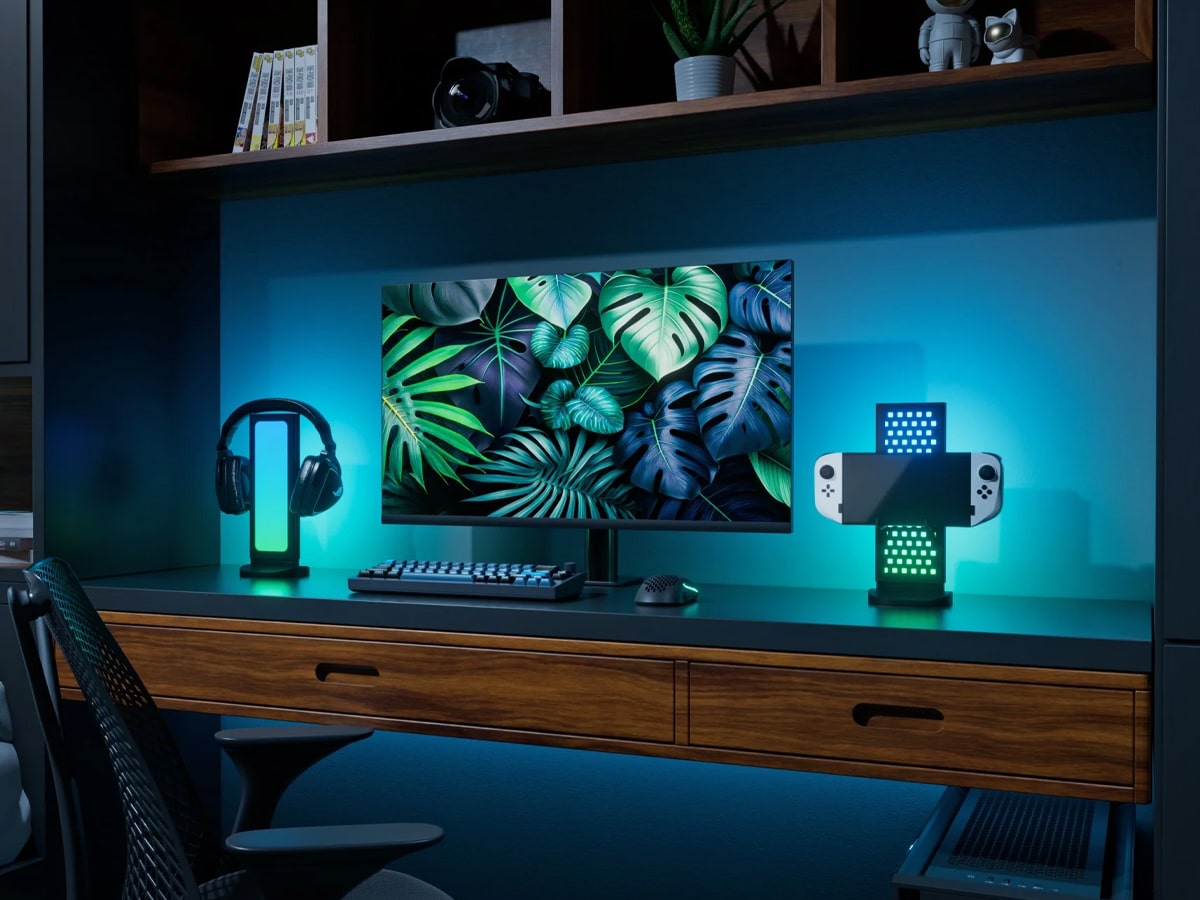
Nanoleaf Pegboard Desk Dock (from AUD$104.99)
Okay, we’ll admit you don’t NEED a Nanoleaf Pegboard Desk Dock. Still, if you want to spice up your WFH setup, this is a great way to do it. Operating as a modular pegboard, it provides a dedicated, vertical storage solution for peripherals, cables, and stationery, effectively clearing the primary desk surface of visual clutter that can subconsciously impact focus. Within the frame is a customisable RGB lighting system that can be synchronised with other smart lights in the room, allowing users to define the aesthetic of their workspace.
Nanoleaf Blocks (from AUD$359.99)
Like the Desk Dock, Nanoleaf Blocks aren’t necessary, but they offer a great backlight. These modular, edge-to-edge illuminated squares let you construct custom geometric arrangements on the wall behind their workstation. By emitting a soft, diffused light that reduces the harsh contrast between the display and the surrounding environment, they add visual comfort during extended evening work sessions.
Desk Mats and Cable Management
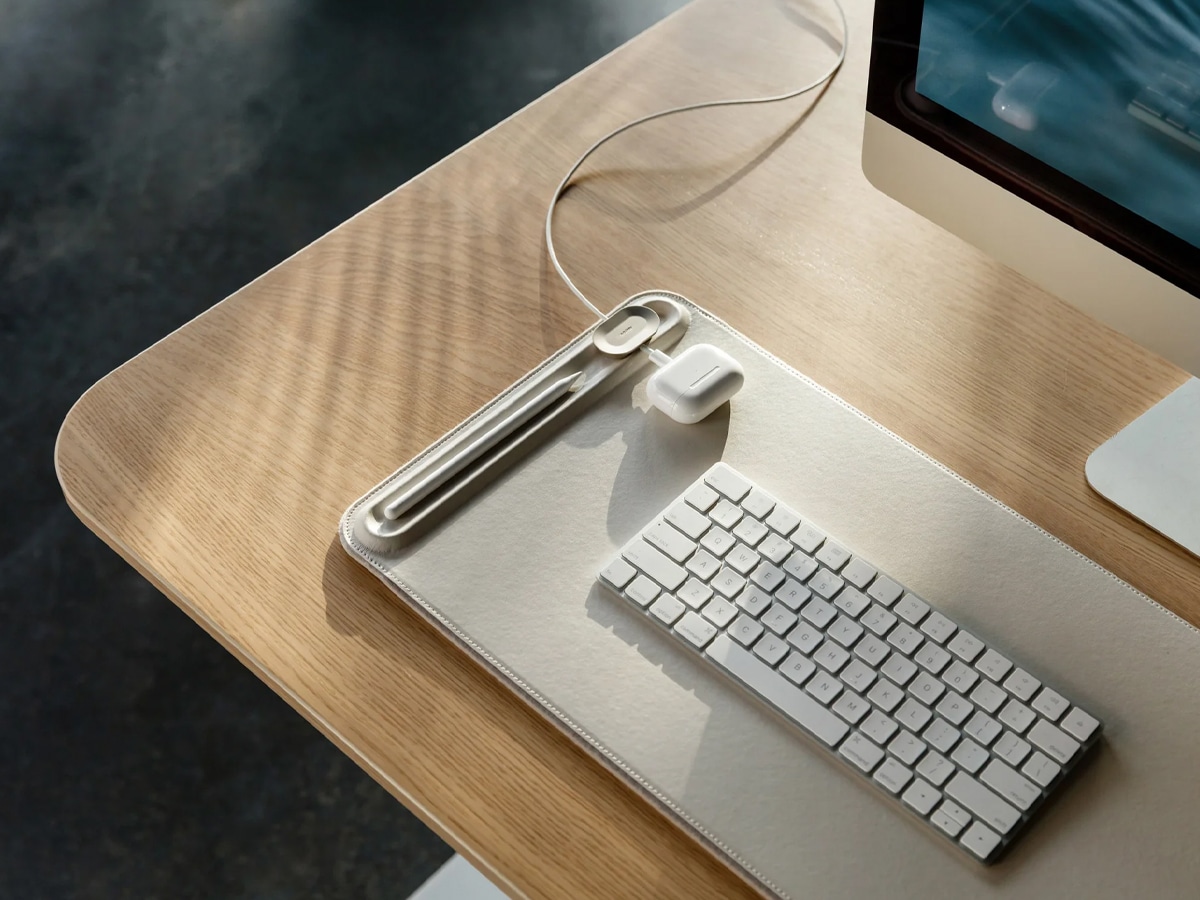
Orbitkey Desk Mat (from AUD$155)
This has been a staple of ours for years. Constructed from high-quality vegan leather, the mat provides a smooth tracking surface for standard and high-DPI mice while protecting the underlying desk from scratches and spills. Its defining feature is a cleverly designed dual-layer system that lifts the top surface to reveal a hidden stash for loose documents, keeping sensitive notes accessible while keeping them out of sight. The dedicated magnetic toolbar runs along the top edge, utilising movable cable organisers to keep charging cords securely anchored and easily reachable, effectively eliminating cable sprawl.
Harber London Desk Mat (from AUD$135)
It’s a nice leather desk mat. The Harber London Desk Mat offers high-level craftsmanship and tactile quality. Handcrafted from dense, full-grain leather, the mat develops a unique patina over time while providing an incredibly durable surface that withstands daily wear.
Frequently Asked Questions
How much RAM do I need for a work-from-home setup in 2026?
If you’re doing standard office work, 16GB of RAM is the new minimum. Modern operating systems, web browsers, and applications increasingly rely on local AI processing, which demands more memory. If you buy an 8GB machine today, you’ll experience bottlenecking and lag. For creative professionals working with 3D design, heavy video editing, or massive data sets, 32GB is recommended to ensure smooth performance during heavy multitasking.
Is a standing desk actually worth the investment?
Yes, but not because you should stand for eight hours straight. The true value of a standing desk is the ability to introduce “micro-movements” into your day. Alternating between sitting and standing every few hours engages different muscle groups, improves blood circulation, and drastically reduces lower back compression from static sitting.
Do I really need a Thunderbolt dock, or is a cheap USB-C dongle enough?
If you only need to connect a single 1080p monitor and a basic wireless mouse, a cheap USB-C dongle will suffice. However, if you are running dual 4K monitors, transferring large files, and want to charge your laptop simultaneously, a cheap dongle will overheat, cause screen flickering, and bottleneck your data. A true Thunderbolt 4 dock delivers massive bandwidth (up to 40 Gbps) and consistent power delivery, making it the backbone of a high-end desk setup.
Why should I buy a dedicated microphone if my laptop already has one?
Built-in laptop microphones are generally low quality and omnidirectional, meaning they pick up everything in the room, including keyboard clacks, street noise, and room echo. A dedicated dynamic microphone, like the Shure MV6, features off-axis rejection. It actively filters out background noise and isolates your voice, delivering a rich, professional, broadcast-quality sound.
What is the best monitor size for a home office?
For most professionals, the sweet spot is between 27 and 32 inches. We recommend a 32-inch 4K monitor because it provides enough screen real estate to comfortably snap two full-sized windows side-by-side without scaling the text to an unreadable size. If you opt for anything larger than 32 inches, you may experience neck strain from constantly panning your head, which is why we often recommend adding a vertical second screen instead of buying a massive ultrawide.




























Comments
We love hearing from you. or to leave a comment.